
Reviews & Guides · Computing & Networking
HUAWEI BE7 Pro wired mesh: fixing a wrong cable connection
Reviewed: HUAWEI BE7 ProRegional reference: HUAWEI BE7 Pro (China); HUAWEI WiFi BE3 Pro (Poland / Europe); HUAWEI HiLink Mesh compatible routers (UK)
I fixed my HUAWEI BE7 Pro wired mesh by tracing a wrong cable connection; after correcting it, my laptop joined the same network and internet worked.
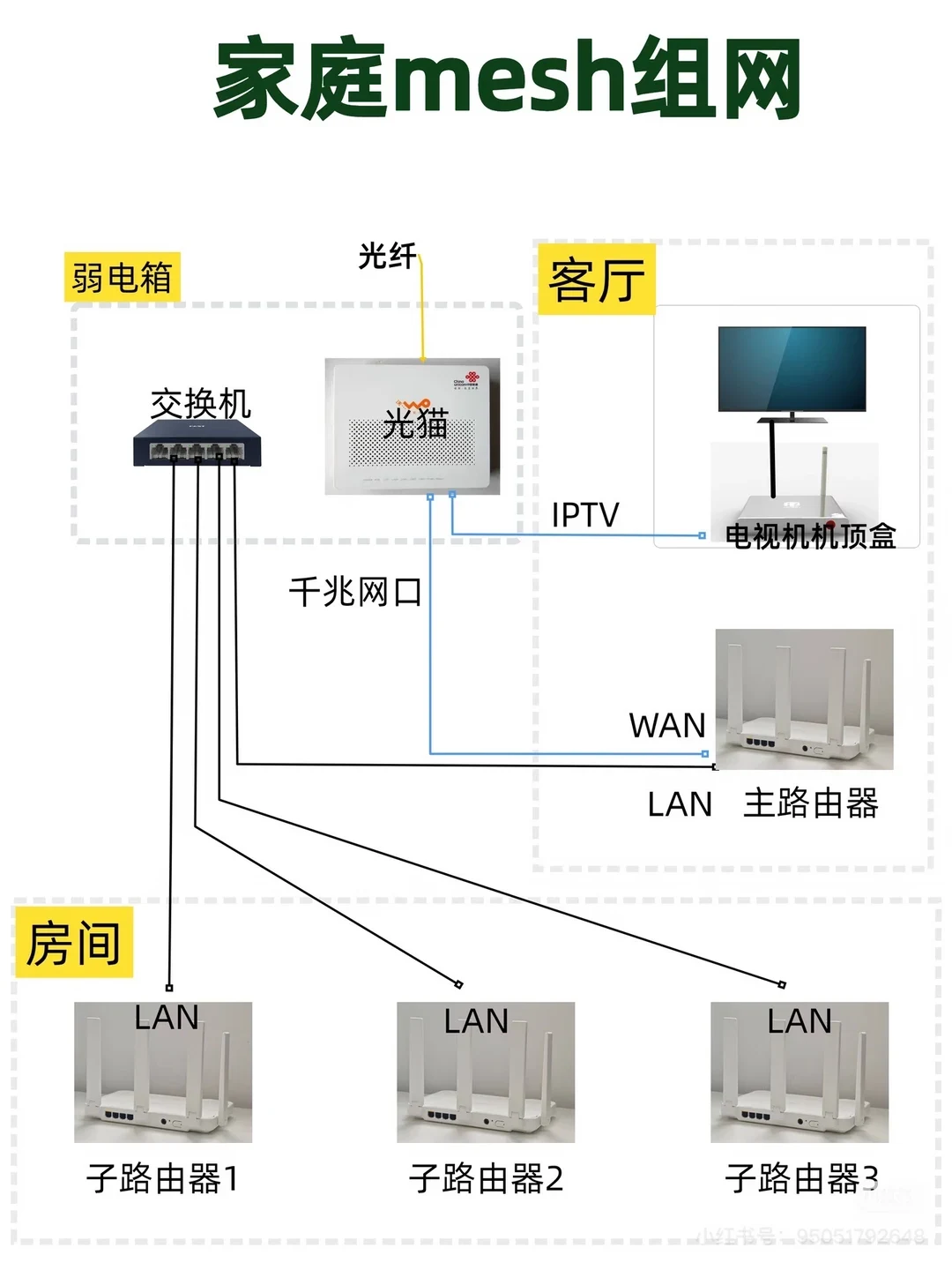
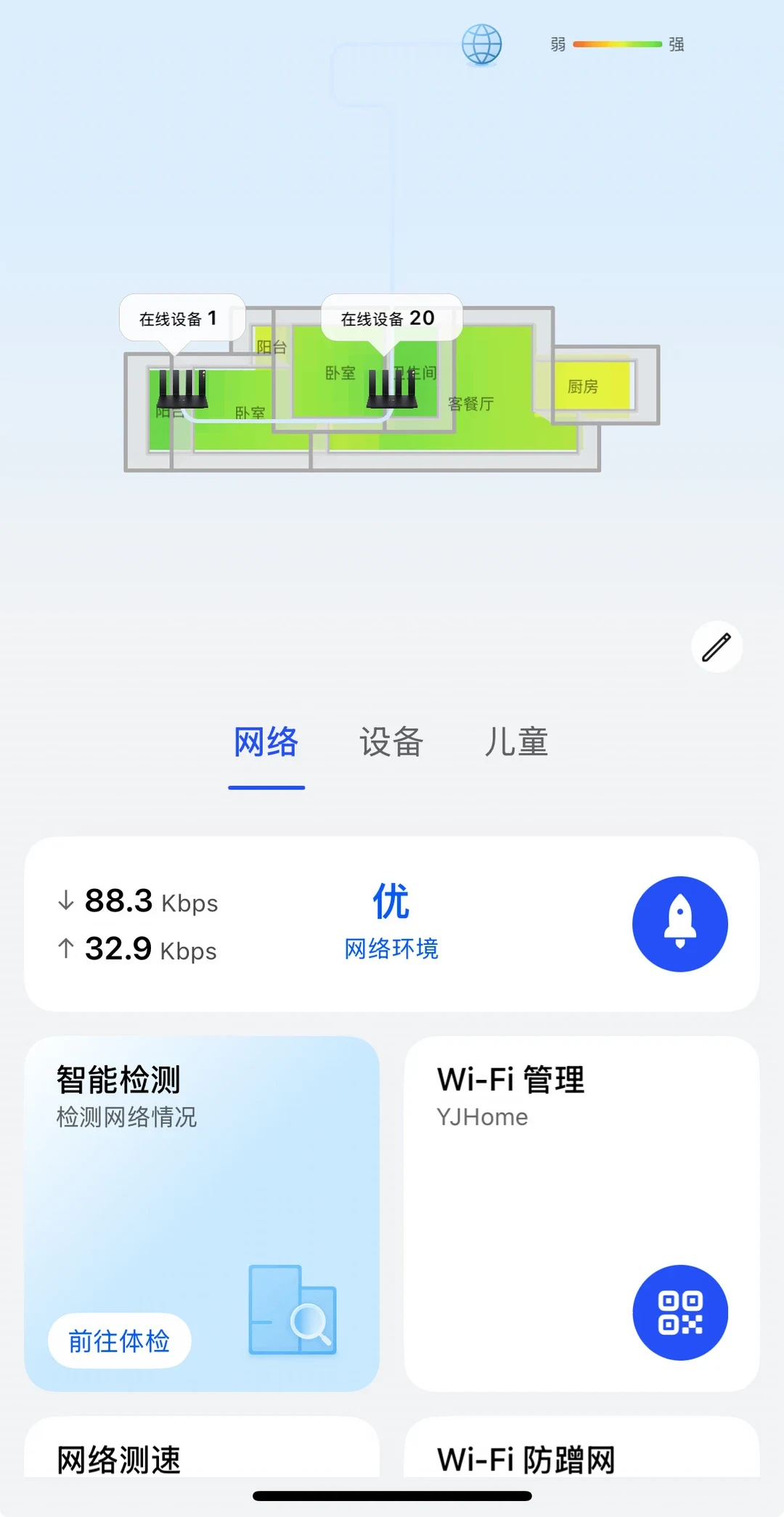
When the wiring was first installed during renovation, I planned for a wired mesh network.
I bought a router for the living room and had been using it for smart-home devices.
With move-in being considered in a couple of months, I hurried to get the network working.
I bought another HUAWEI BE7 Pro of the same model and put it in the small room to set up the mesh.
I asked customer service how to configure the secondary router.
After configuration, the device indicator was green, suggesting the connection was up, but there was no internet access. I contacted customer service, but after a long discussion we still had no solution.
My network-engineering skills kicked in. I connected the small room’s cable to a laptop, and DHCP assigned it an address on a different subnet from the living-room router...
I quickly checked the wiring and traced the mistake back to the communications cabinet.
I found that the China Unicom installer had run an Ethernet cable from the optical modem to a switch, then connected the living room to that switch.
I removed that cable and connected the living-room Ethernet cable directly to the optical modem.
I checked the laptop’s assigned address again. It was now on the same subnet as the living-room router, and I finally had internet access.
I walked around with my phone livestreaming to test it. The signal switched seamlessly, and the video did not stutter.
I finally got to experience wired mesh, and it was excellent!
Things to note
- Check the network diagram. If you are not accounting for IPTV, you need two cables between the living room and the communications cabinet.
- If you use the wireless router to establish the broadband connection, ask the installer for the account name and password and write them down.
- Consider combined fiber-and-Ethernet cabling for future upgrades.
- Leaving an Ethernet port in every room is convenient; it does no harm if you do not use it.
Source: 大牡丹 · Xiaohongshu · 2026-04-25 · 有线mesh组网调试成功. Search this Chinese title in Xiaohongshu to find the original post.
Before You Buy
Models in your region
The owner’s two routers are the China-market HUAWEI BE7 Pro. The European HUAWEI WiFi BE3 Pro is a related product, not a verified regional rename, so its specifications should not be used to identify the owner’s hardware.
| Model in this review | Related regional model | What to know |
|---|---|---|
| HUAWEI BE7 Pro (China) | HUAWEI BE7 Pro (China) | This is the model the owner used: two matching units in a wired mesh. Huawei lists four 2.5GbE WAN/LAN ports and a theoretical dual-band rate of 6,453 Mbps; those specifications do not verify the owner’s wiring or measured performance. |
| Regional context for the BE7 Pro | HUAWEI WiFi BE3 Pro (Poland / Europe) | This is a related but separate model, not an established regional version of the BE7 Pro. Huawei lists 2.5GbE and 1GbE ports and a theoretical 3,570 Mbps combined rate; do not assume the owner’s BE7 Pro experience or feature set transfers to it. |
| Mesh compatibility context for the BE7 Pro | HUAWEI HiLink Mesh compatible routers (UK) | Huawei describes compatible routers as able to form a mesh using wired, wireless, or hybrid backhaul. This is a compatibility overview, not confirmation that the owner’s BE7 Pro has the same UK firmware or is compatible with every router. |
- Model in this review
- HUAWEI BE7 Pro (China)
- Related regional model
- HUAWEI BE7 Pro (China)
- What to know
- This is the model the owner used: two matching units in a wired mesh. Huawei lists four 2.5GbE WAN/LAN ports and a theoretical dual-band rate of 6,453 Mbps; those specifications do not verify the owner’s wiring or measured performance.
- Model in this review
- Regional context for the BE7 Pro
- Related regional model
- HUAWEI WiFi BE3 Pro (Poland / Europe)
- What to know
- This is a related but separate model, not an established regional version of the BE7 Pro. Huawei lists 2.5GbE and 1GbE ports and a theoretical 3,570 Mbps combined rate; do not assume the owner’s BE7 Pro experience or feature set transfers to it.
- Model in this review
- Mesh compatibility context for the BE7 Pro
- Related regional model
- HUAWEI HiLink Mesh compatible routers (UK)
- What to know
- Huawei describes compatible routers as able to form a mesh using wired, wireless, or hybrid backhaul. This is a compatibility overview, not confirmation that the owner’s BE7 Pro has the same UK firmware or is compatible with every router.
A green indicator did not confirm internet access
The second BE7 Pro showed a green indicator after configuration, yet devices still could not reach the internet. A laptop connected to the small-room cable received a DHCP address on a different subnet from the living-room router, which pointed the owner toward a wiring problem rather than proving a router fault.
Tracing the cable showed that the optical modem had been connected to a switch before the living-room router. The owner removed that connection and plugged the living-room cable directly into the optical modem; the laptop then received an address on the same subnet as the living-room router and internet access worked. This is the specific topology and fix, not a universal wiring prescription.
Roaming after correcting the wired connection
After correcting the wiring, the owner walked around with a phone livestream running and reported seamless signal switching with no video stutter. The post gives no measured roaming latency or controlled speed-test results, so this supports the experience during that walk rather than a general performance claim.
The app screenshot shows a two-router floor plan and online-device counts, but its displayed traffic rates are current network activity, not a speed test. The generic wiring diagram illustrates a possible layout and does not establish the exact connections in the home.
Plan the wiring and check regional model names
The owner advises planning two cables between the living room and communications cabinet when IPTV is not part of the setup, and keeping an Ethernet outlet in every room. The post does not establish a complete wiring diagram for other homes; map the connections for your own modem, router, switch, and IPTV equipment before copying this fix.
For a China-market BE7 Pro, Huawei lists four 2.5GbE WAN/LAN ports, support for PPPoE, DHCP, static IP, and bridge modes, and a theoretical 6,453 Mbps dual-band rate. These official specifications describe the model, not the achieved internet speed or the performance of the corrected setup.
The European WiFi BE3 Pro is a separate related product: Huawei lists two 2.5GbE and two 1GbE ports and a theoretical combined rate of 3,570 Mbps. The supplied evidence does not verify firmware, features, or mesh pairing equivalence with the China BE7 Pro, so buyers should confirm the exact model and regional compatibility rather than treating the names as interchangeable.
Huawei’s UK HiLink Mesh information describes wired, wireless, and hybrid backhaul for compatible Huawei routers. It does not confirm that every router can join, or establish the UK firmware and compatibility of the BE7 Pro; check the specific router models before building a cross-model mesh.
Related Reading
Reviews & Guides · Computing & Networking
TP-Link Deco X55 in a two-storey Australian home: Wi-Fi across 300 m²
I installed two TP-Link Deco X55 units in my 300 m², two-storey home; bedrooms that often lost Wi-Fi now had a signal throughout the house.
Reviews & Guides · Computing & Networking
TP-Link Deco X55: DNS pauses stopped for six days in access-point mode
I switched my Deco X55 to access-point mode and restored my older router to the front of the network. The DNS-like pauses stayed away for six days.
Reviews & Guides · Computing & Networking
TP-Link Deco X55 after nearly a year: six units, Teams and gaming
I’ve used six TP-Link Deco X55 units for nearly a year, including daily Teams calls and online gaming; I’ve had only one or two connectivity issues.