
Reviews & Guides · Computing & Networking
Xiaomi Router BE10000 Pro and BE3600 Pro: fixing a missing 5 GHz mesh signal
Reviewed: Xiaomi Router BE10000 Pro, Xiaomi Router BE3600 ProRegional reference: Xiaomi Router BE3600 (UK)
I spent two days debugging my Xiaomi BE10000 Pro and BE3600 Pro mesh; enabling the main router’s 5GHz_Game band restored 5 GHz access at the secondary node.
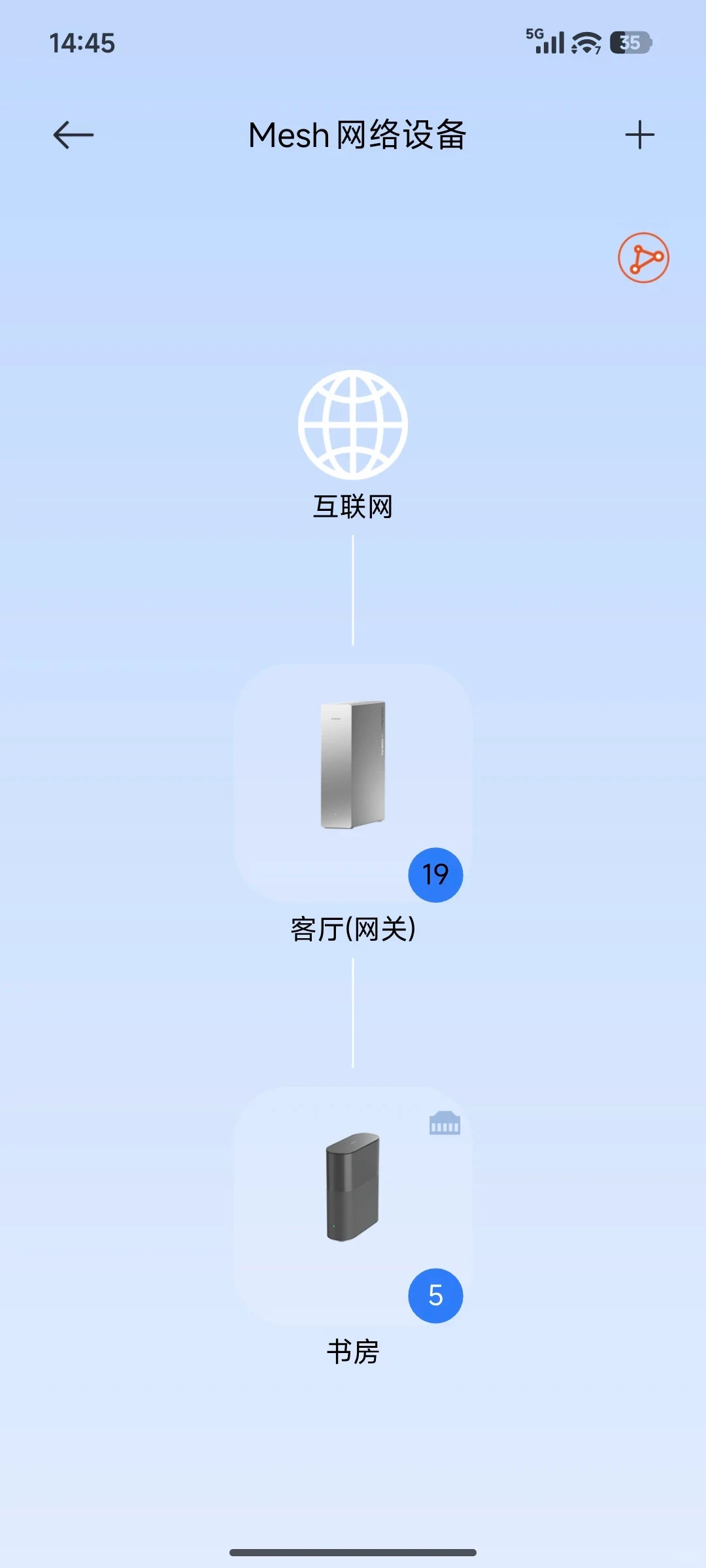
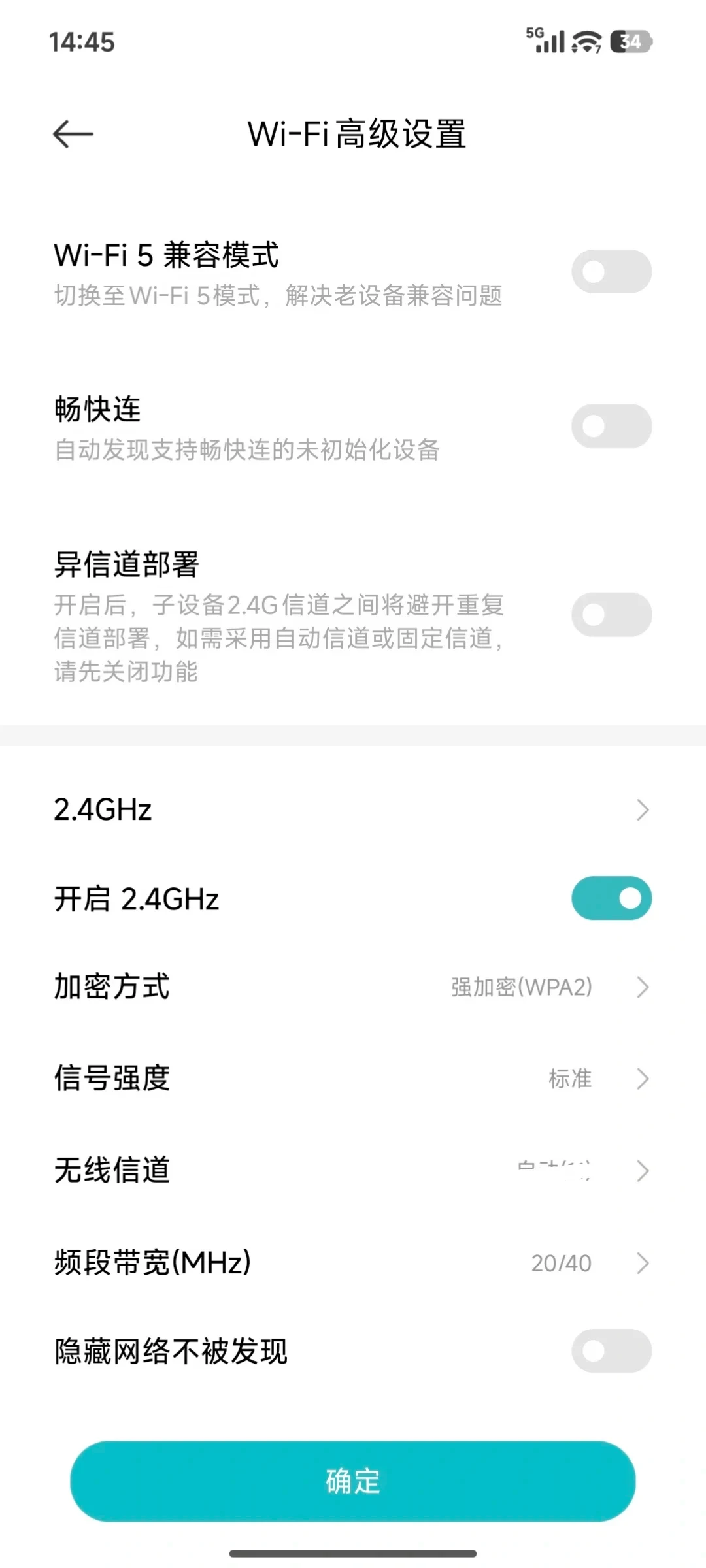
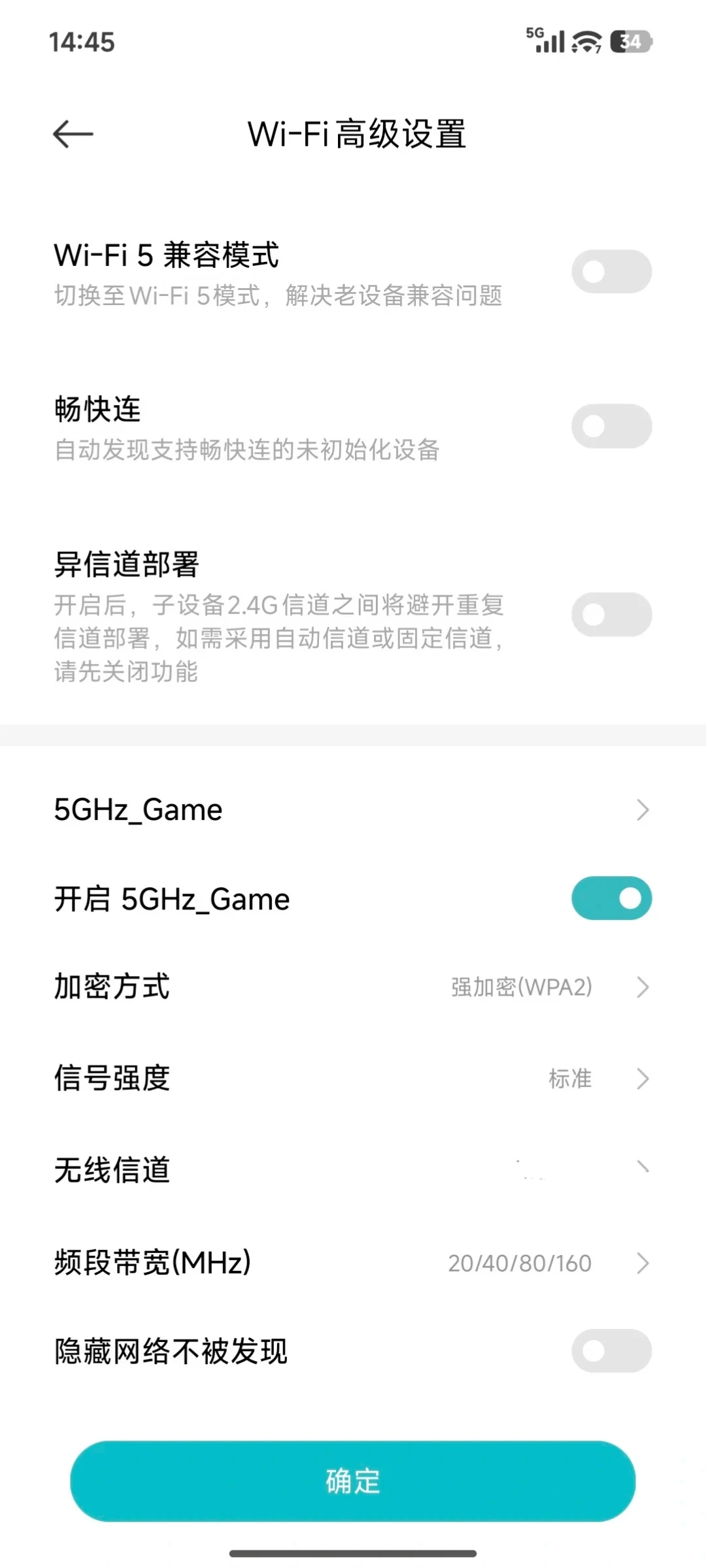
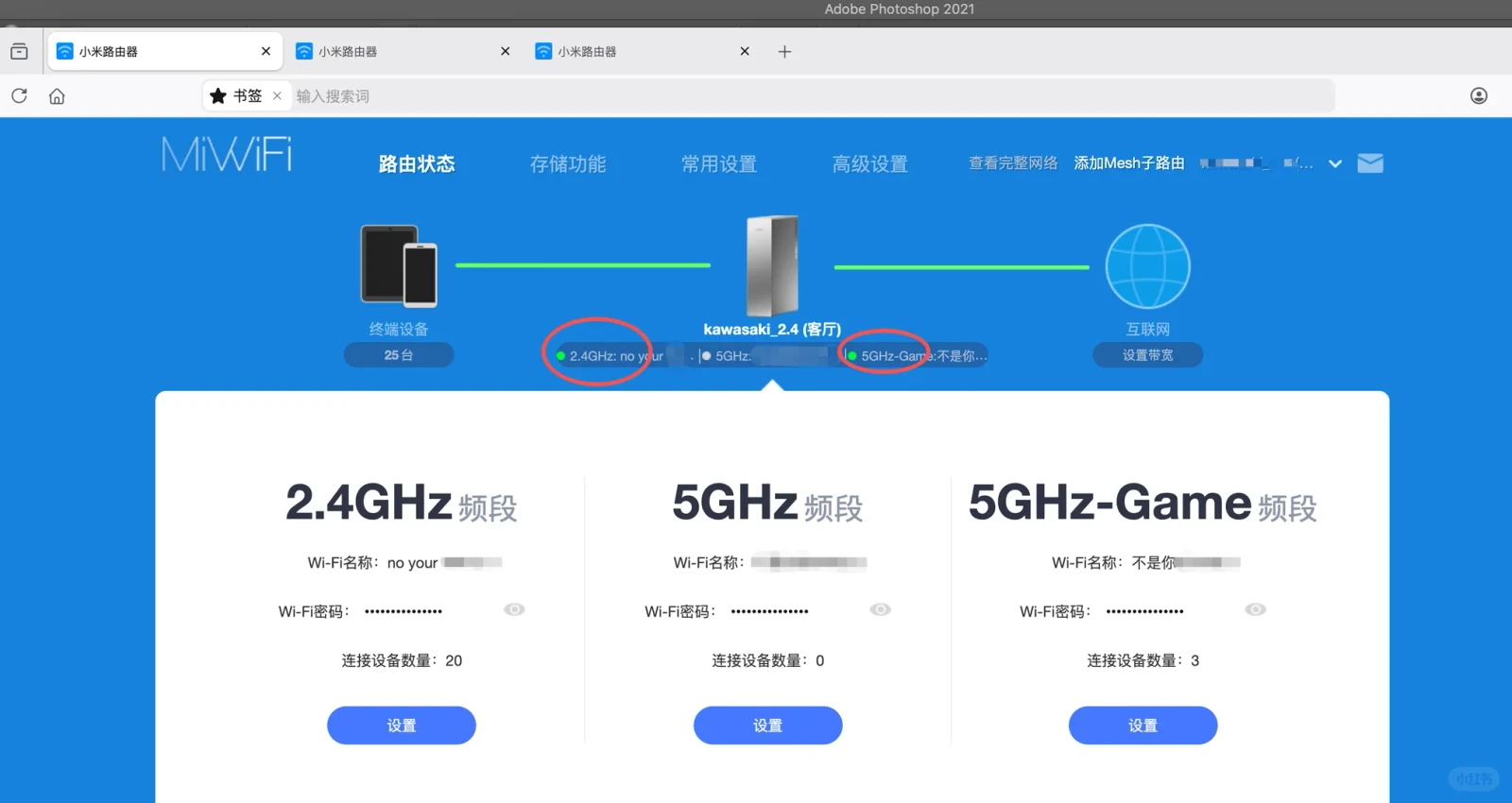
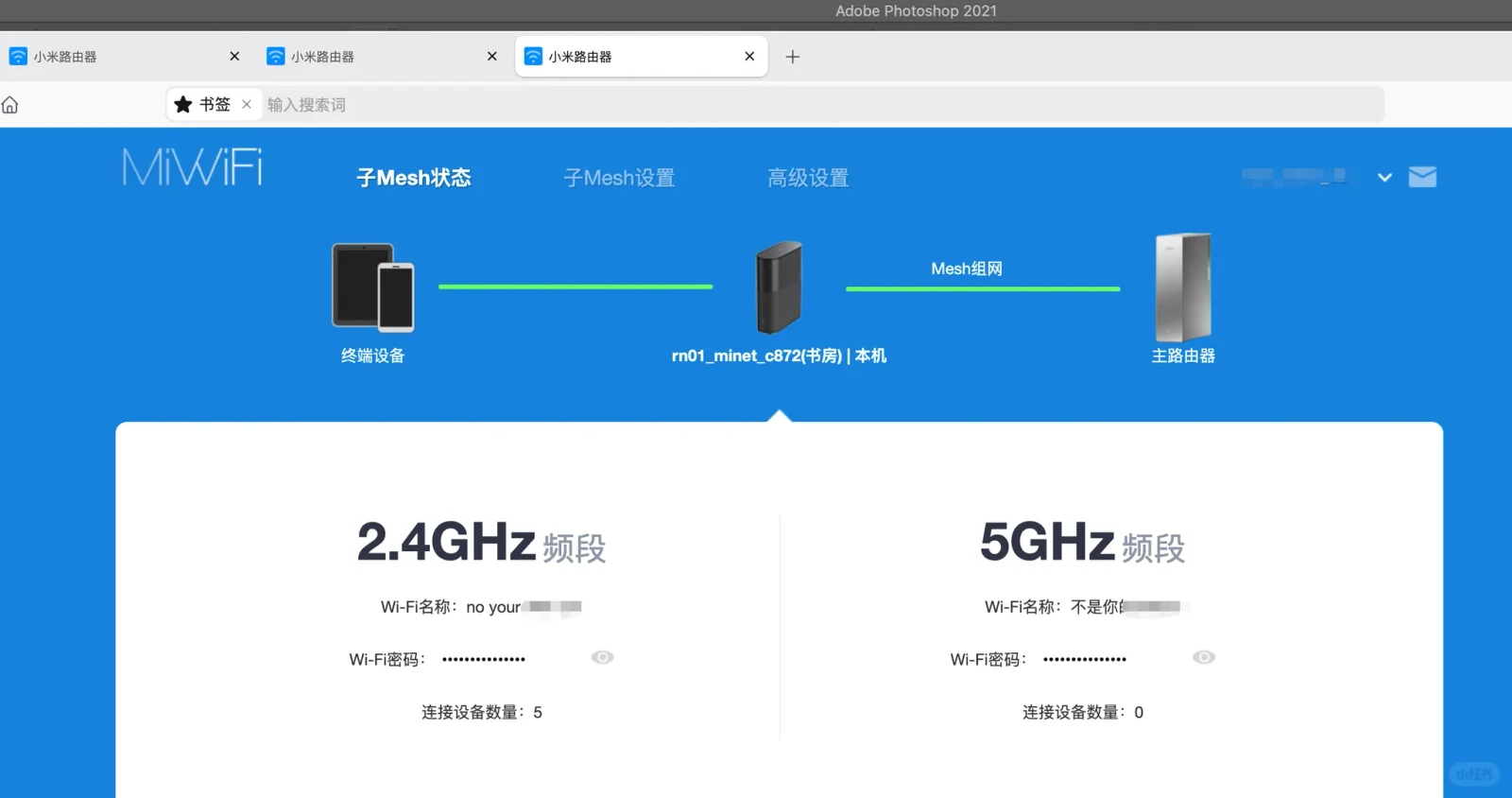
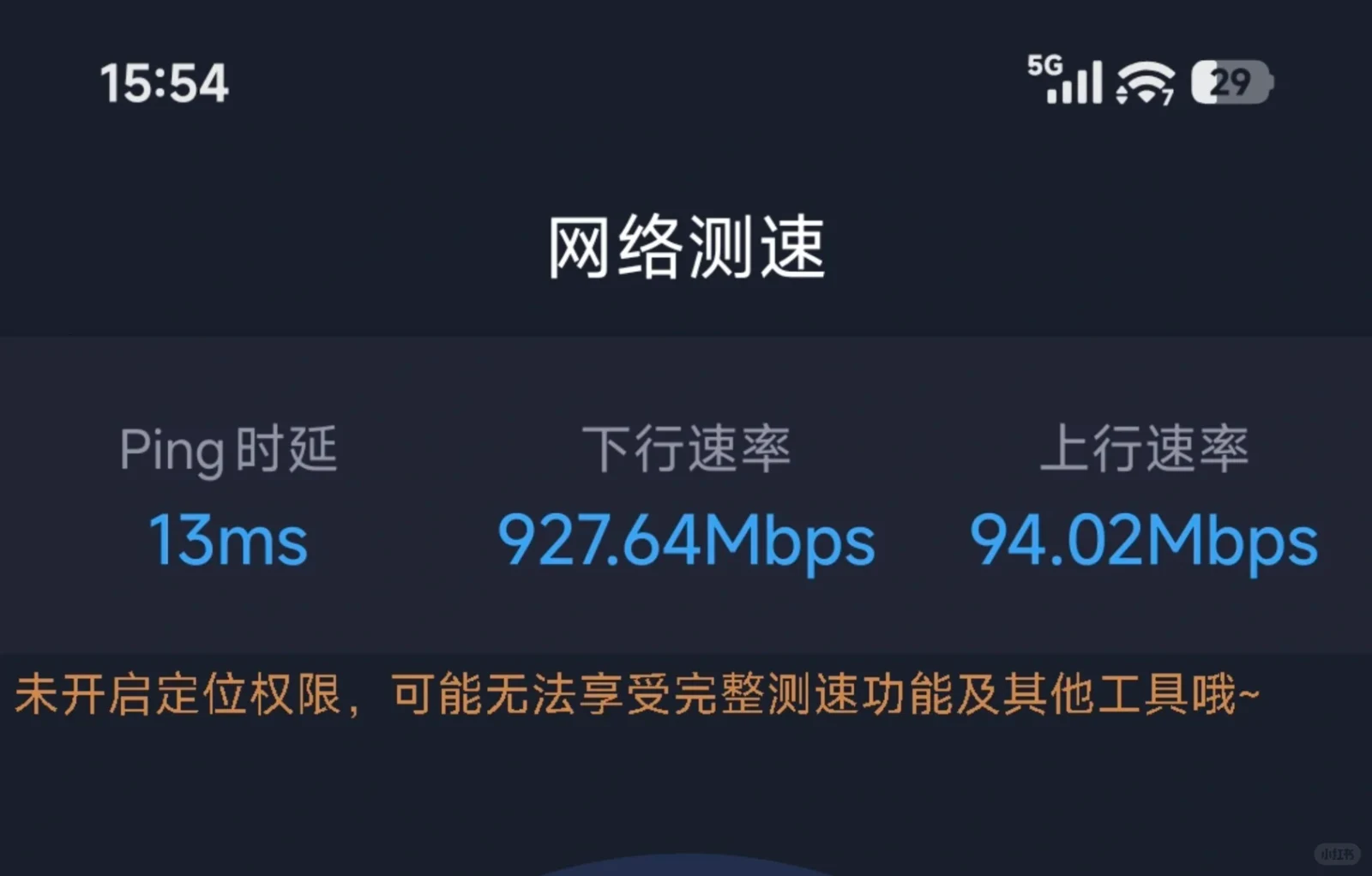
Just sharing the technical details. In my mesh setup, the secondary router had only a 2.4 GHz signal and no 5 GHz. I initially thought the router was faulty, but after two days of troubleshooting, I finally figured it out!
Equipment: Xiaomi Router BE10000 Pro as the living-room main router, Xiaomi Router BE3600 Pro as the study-room secondary router, and a Cat 6A double-shielded Ethernet cable.
Setup: I use the modem only to convert the optical signal. It connects to the main router’s 10G port for the internet connection. A cable from the other 10G port goes back to a switch, which distributes connections to the rooms, including the study-room secondary router.
Steps
- On the main router, first check that the internet works, then turn off band steering and set up the 2.4 GHz and 5 GHz Wi-Fi networks normally. Most importantly, enable WiFi 5G_Game on the BE10000 Pro—that was the key! I later found that, in my setup, the secondary router’s 5 GHz connection was available only through this 5GHz_Game network.
- Just connect the secondary router by Ethernet and power it on. If both routers are Xiaomi models, they should pair automatically. You may not see a separate signal for the secondary router in your phone’s Wi-Fi settings, or it may appear briefly and disappear; that means it has paired with the main router, so only one Wi-Fi network is shown.
- Check the router status in the Mi Home app. If the secondary router appears, that’s right. In its settings, change the backhaul mode to wired. It made the connection extremely stable!
- You can check which node connected devices are using. I manually assigned smart-home devices near the secondary router to its 2.4 GHz network, and selected 5 GHz for phones and similar devices. Here’s the important part: check whether a phone can connect to 5 GHz only when it is near the main router, but gets a weak signal or cannot connect in the room. In my setup, that was because 5GHz_Game was not enabled; the secondary router did not support the regular 5 GHz network.
- Log in to the router’s web administration page and check the secondary router’s bands, especially 5 GHz. Make sure its 5 GHz band matches the main router’s. Then it should work normally. A standard signal-strength setting is enough; you don’t need to set it to penetrate walls, which could stop the two routers from switching automatically.
Source: 李二一 · Xiaohongshu · 2026-05-17 · 米家meah正确组网!!. Search this Chinese title in Xiaohongshu to find the original post.
Before You Buy
Models in your region
The account describes a China-market Xiaomi Router BE10000 Pro paired with a Xiaomi Router BE3600 Pro, with the BE3600 Pro used as the secondary node. The official UK Xiaomi Router BE3600 is a separate dual-band Wi-Fi 7 product, not a confirmed regional version of either router in this setup. The troubleshooting details therefore apply to the author’s China-market pair, not automatically to UK models.
| Model in this review | Related regional model | What to know |
|---|---|---|
| Xiaomi Router BE10000 Pro and BE3600 Pro | Xiaomi Router BE3600 (UK) | The China-market BE10000 Pro was the main router and BE3600 Pro the wired secondary. UK BE3600 is a separate dual-band Wi-Fi 7 router; the reported 5GHz_Game behavior and compatibility are not established for it. |
- Model in this review
- Xiaomi Router BE10000 Pro and BE3600 Pro
- Related regional model
- Xiaomi Router BE3600 (UK)
- What to know
- The China-market BE10000 Pro was the main router and BE3600 Pro the wired secondary. UK BE3600 is a separate dual-band Wi-Fi 7 router; the reported 5GHz_Game behavior and compatibility are not established for it.
What the UK Xiaomi Router BE3600 offers
The UK Xiaomi Router BE3600 is a dual-band Wi-Fi 7 router with one 2.5G Ethernet port and three Gigabit Ethernet ports. Xiaomi says it supports mixed Mesh networking with up to 10 routers when paired with compatible models and the current app; that statement does not establish compatibility with the China-market BE10000 Pro or BE3600 Pro.
The UK product’s listing does not confirm a 5GHz_Game network or equivalent firmware behavior. The source’s fix—enabling that band on the main router and matching the secondary’s 5 GHz band—cannot be treated as instructions for the UK Xiaomi Router BE3600 without model-specific confirmation.
Check placement when setting up the UK model
For the UK Xiaomi Router BE3600, Xiaomi recommends an unobstructed, central position, upright and about 1 metre above the ground, away from enclosed metal cabinets. These are placement recommendations for the UK product, not a verified explanation for the China-market pair’s missing 5 GHz signal.
Troubleshooting the reported China-market mesh setup
In this BE10000 Pro and BE3600 Pro setup, the author found that enabling the main router’s 5GHz_Game network restored 5 GHz availability at the secondary node. The account describes a result from this particular pair; it does not establish that every BE3600 Pro or other regional model lacks ordinary 5 GHz mesh support.
The author also set the secondary router’s backhaul to wired and checked that its 5 GHz band matched the main router’s. If troubleshooting this same configuration, these are the settings the account identifies alongside enabling 5GHz_Game; the source does not verify that they solve the issue on other model combinations.
Related Reading
Reviews & Guides · Computing & Networking
TP-Link Deco X55 in a two-storey Australian home: Wi-Fi across 300 m²
I installed two TP-Link Deco X55 units in my 300 m², two-storey home; bedrooms that often lost Wi-Fi now had a signal throughout the house.
Reviews & Guides · Computing & Networking
TP-Link Deco X55: DNS pauses stopped for six days in access-point mode
I switched my Deco X55 to access-point mode and restored my older router to the front of the network. The DNS-like pauses stayed away for six days.
Reviews & Guides · Computing & Networking
TP-Link Deco X55 after nearly a year: six units, Teams and gaming
I’ve used six TP-Link Deco X55 units for nearly a year, including daily Teams calls and online gaming; I’ve had only one or two connectivity issues.