
Reviews & Guides · Computing & Networking
ZTE Xuntian AX3000 mesh: one hour of mixed 5 GHz results
Reviewed: ZTE Xuntian AX3000Regional reference: ZTE AX3000 Pro (UK / Europe)
I added a ZTE mesh node for a distant bedroom: 5 GHz dropped during my first hour, while ordinary Wi-Fi worked better than my phone fallback.
I have a Xuntian AX3000 in the living room, but its signal is weak in the farthest bedroom, so I bought a Small Cube as a secondary router.
→ I originally wanted to connect them in parallel over Ethernet. When I tried setting it up, I found that because the main router uses PPPoE for internet access, I couldn't use that arrangement. I could only connect them in series, with the main router's LAN port going to the secondary router's WAN port, or use wireless mesh.
→ The bedroom is far from the living room, and I couldn't run an Ethernet cable between the routers, so I chose wireless mesh.
The steps were
- Set up the secondary router: plug it in, connect to its Wi-Fi, and configure it through the web interface.
- Connect the two routers.
- Confirm in the official web interface that the mesh is set up. Unplug the secondary router, plug it in again in the bedroom, and wait for the light to turn green and for the interface to show it as a secondary router. Its Wi-Fi name should not appear as a separate network in the Wi-Fi list.
I have to praise ZTE's phone support here. I'm a networking novice, and the support agent patiently walked me through the steps.
But one thing was discouraging: support told me that wireless mesh essentially means the secondary router connects to the main router's Wi-Fi. So if the Wi-Fi is already very weak in the room where you put the secondary router, adding another router may not give you a good connection either.
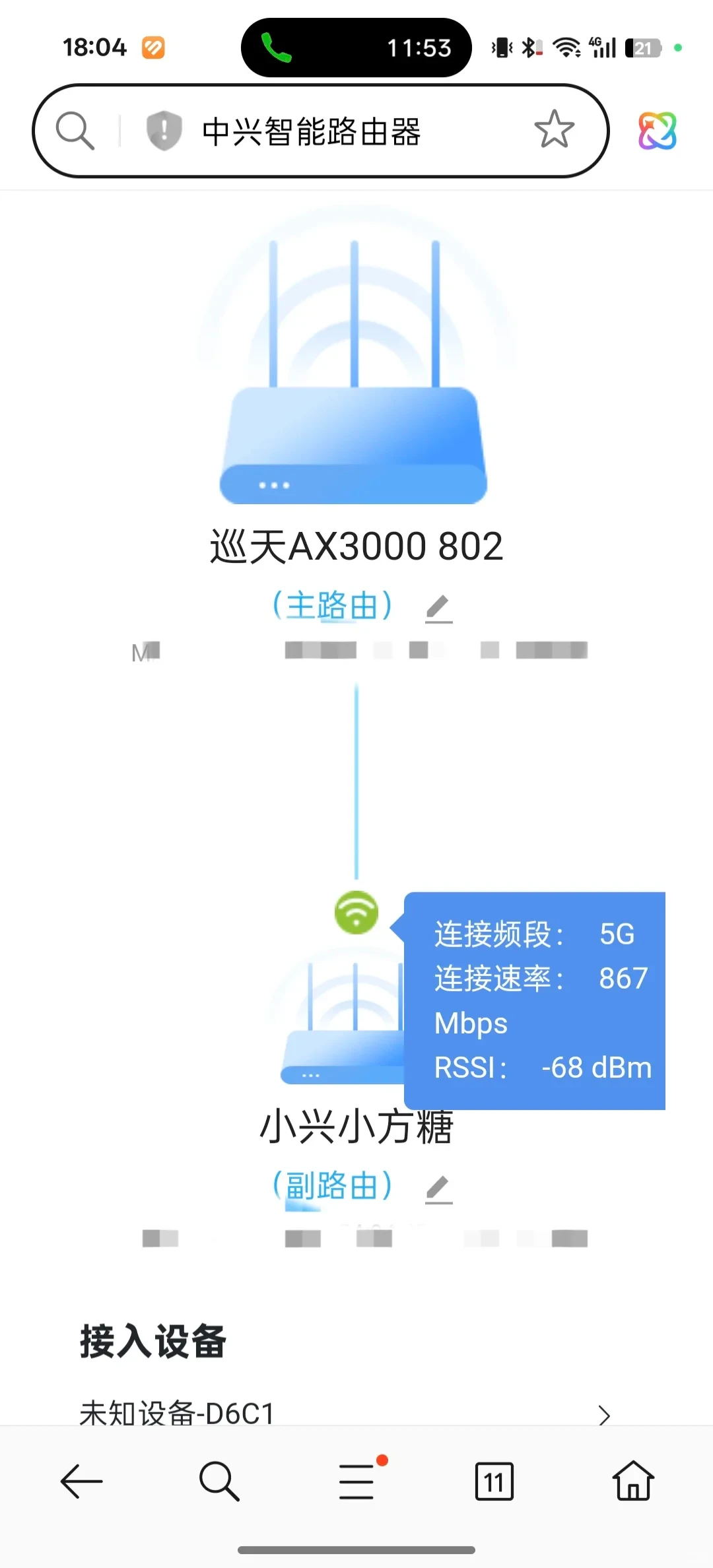
The official interface shows the connection signal. If it isn't between 0 and −60, it's not very good. Mine showed −74.
I was worried I might have spent 100 yuan for nothing. I planned to try it for two days and return it if it didn't work.
→ There was another hiccup. I followed a video tutorial and initially set it to bridge mode, which stopped the main router from working. I had to reset it, then search everywhere for my broadband account and password. I called support and found out they were written on the optical network terminal. So if your WAN connection setting says PPPoE, don't change it to bridge mode!
After using it for an hour: 5 GHz drops, but ordinary Wi-Fi has been working pretty well—better than the inexplicable switch to mobile data I had before. I think I'll keep it.
#Router #WirelessRouter #WholeHomeSmartHome #ZTEXuntianRouter #Broadband
Source: 淡淡的死意 · Xiaohongshu · 2025-11-17 · 中兴mesh组网的实际操作体验. Search this Chinese title in Xiaohongshu to find the original post.
Before You Buy
Models in your region
The source account identifies its main router as a ZTE Xuntian AX3000 and its secondary node only as a Small Cube; the interface screenshot labels the connected units Xuntian AX3000 802 and Xiaoxing Little Sugar Cube. The official ZTE AX3000 Pro listing is a UK/Europe-related product, not a verified regional version of either source unit, so the account's mesh experience does not establish compatibility with it.
| Model in this review | Related regional model | What to know |
|---|---|---|
| ZTE Xuntian AX3000 | ZTE AX3000 Pro (UK / Europe) | The source used this China-market model as the main router; the official UK/Europe listing is for the related but distinct AX3000 Pro. The listed product is not confirmed as the same hardware or as compatible with the source’s Small Cube. |
- Model in this review
- ZTE Xuntian AX3000
- Related regional model
- ZTE AX3000 Pro (UK / Europe)
- What to know
- The source used this China-market model as the main router; the official UK/Europe listing is for the related but distinct AX3000 Pro. The listed product is not confirmed as the same hardware or as compatible with the source’s Small Cube.
Mesh signal and the first-hour result
Wireless mesh depends on the secondary node receiving a usable connection from the main router. In this setup, the owner reported a signal reading of −74 in the web interface and was warned that a node placed where Wi-Fi is already weak may also provide poor service. That figure is the owner's interface reading, not an independent measurement or a guarantee of performance elsewhere.
The first hour brought a mixed result: 5 GHz dropped, while ordinary Wi-Fi worked better than the owner's previous mobile-data fallback. The owner planned to test the setup for two days and was leaning toward keeping it; the account does not establish the outcome of that longer trial.
The management-page screenshot separately shows a 5 GHz link rate of 867 Mbps and an RSSI of −68 dBm. These are interface values, not an internet speed test, and they differ from the owner's −74 reading in the caption; neither should be treated as the same observation.
Choose a connection path before setup
A wireless node avoids running Ethernet between rooms, but it still needs a viable wireless link back to the main router. The owner chose mesh because a cable between the living room and bedroom was not practical. The account's statement that PPPoE prevented a parallel wired connection describes this owner's setup; it does not establish a universal restriction on PPPoE routers.
The owner described a wired alternative as connecting the main router's LAN port to the secondary router's WAN port in series. Check the intended topology and configuration for the specific routers before changing WAN settings: the source does not provide a verified setup procedure for other models.
Avoid the bridge-mode reset trap
If your WAN connection is configured for PPPoE, do not switch it to bridge mode based only on a generic video tutorial. The owner made that change while setting up the secondary router, lost the main router's internet connection, and had to reset it; the broadband credentials were then found on the optical network terminal. This is one reported setup incident, not evidence that bridge mode is wrong for every network.
The owner says ZTE phone support guided the mesh pairing step by step. That assistance helped this networking novice complete setup, but the account does not establish how support is provided in other markets or for the AX3000 Pro.
Check the node where you will actually use it
After pairing, check the secondary node’s link in the intended bedroom and try the traffic that matters there. Here, the interface capture shows a 5 GHz link at 867 Mbps and -68 dBm, while the text reports a separate -74 reading. Neither value is an internet download measurement. The one-hour account still had 5 GHz drops, so the planned two-day trial remained relevant to the keep-or-return decision.
Related Reading
Reviews & Guides · Computing & Networking
TP-Link Deco X55 in a two-storey Australian home: Wi-Fi across 300 m²
I installed two TP-Link Deco X55 units in my 300 m², two-storey home; bedrooms that often lost Wi-Fi now had a signal throughout the house.
Reviews & Guides · Computing & Networking
TP-Link Deco X55: DNS pauses stopped for six days in access-point mode
I switched my Deco X55 to access-point mode and restored my older router to the front of the network. The DNS-like pauses stayed away for six days.
Reviews & Guides · Computing & Networking
TP-Link Deco X55 after nearly a year: six units, Teams and gaming
I’ve used six TP-Link Deco X55 units for nearly a year, including daily Teams calls and online gaming; I’ve had only one or two connectivity issues.