
Reviews & Guides · Computing & Networking
Belkin Thunderbolt 3 setup: a modified HDMI cable and receiver extensions
Regional reference: Belkin Thunderbolt 3 Express Dock HD F4U095 (United States)
I connected my M1 MacBook Pro, LG C2 and peripherals through a Belkin Thunderbolt 3 dock, then moved my wireless receivers onto USB 2.0 extensions to stop dropouts.
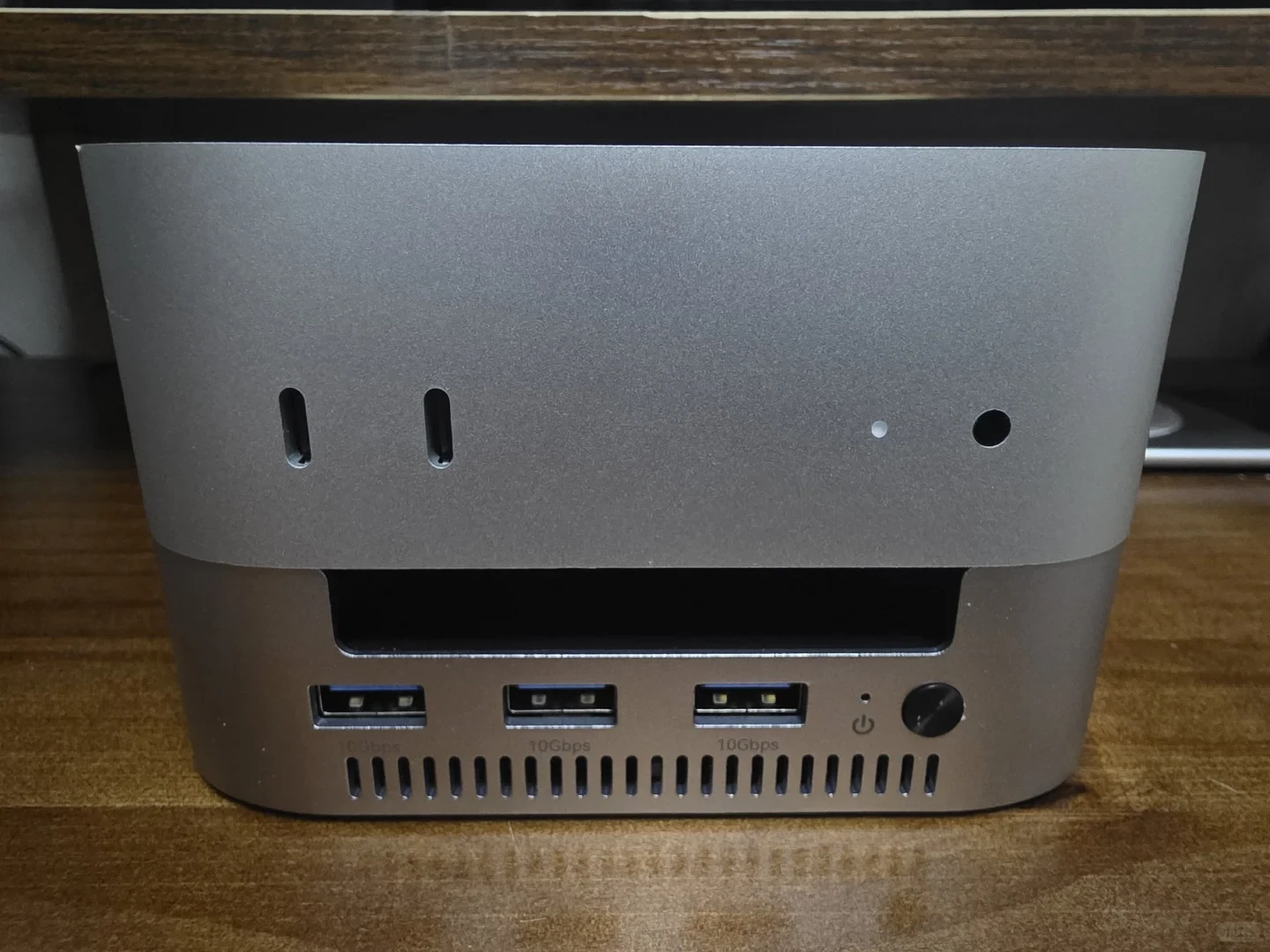
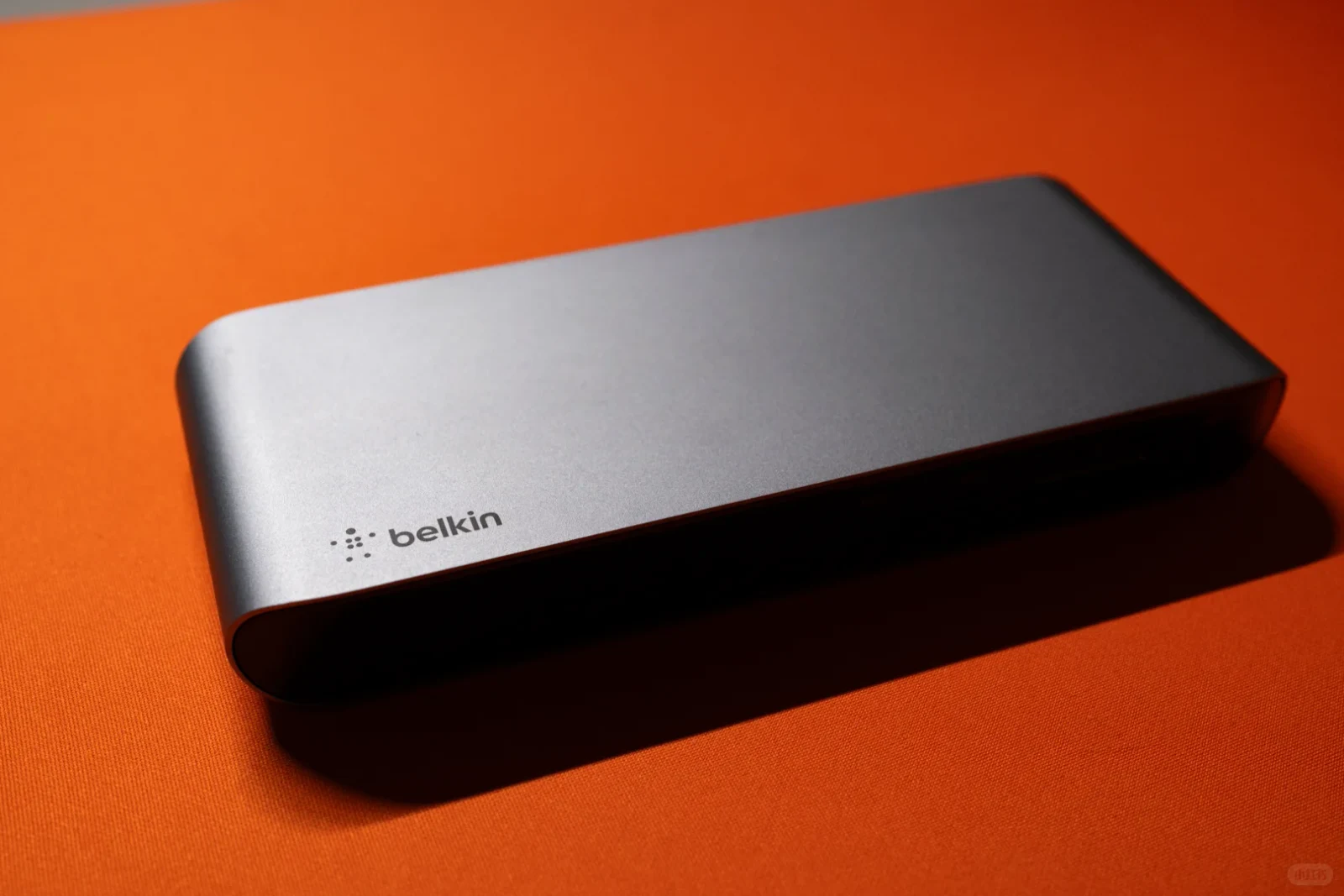
I solved three main problems
- Getting 4K at 120Hz over HDMI from my M1 MacBook Pro.
- Connecting everything through the dock with one cable.
- Fixing lag and dropouts with my wireless keyboard and mouse.
Recently, I moved all my computer use outside gaming over to a Mac. Without the roar of fifteen fans, the world feels so much quieter. My desktop has become a dedicated gaming machine, and I’m pretty happy with that setup. When I turn it on, it’s because I’m about to play a game.
My Mac is an M1 MacBook Pro that I’ve used for many years. The first issue was that my LG C2 monitor only has HDMI inputs. I thought chips before M4 would force HDMI output to 4K at 60Hz. A forum user modified the firmware on a VMM7100-chip adapter cable so the Mac would treat it as DisplayPort, which let it output 4K at 120Hz. You can flash the cable yourself or buy a USB-C-to-HDMI 2.1 cable that has already been modified. In my test, it output 4K at 120Hz with RGB 12-bit, 4L12 HDR; HiDPI and audio output also worked without problems.
The second issue was that my M1 MacBook Pro has only two Thunderbolt 3 ports, which wasn’t enough for my desk. I found that a once very expensive Thunderbolt 3 dock now costs only a few hundred yuan secondhand—Thunderbolt 5 is already here, after all. I picked up a Belkin dock for 350 yuan on a secondhand marketplace. The seller was also an enthusiast and, after hearing about my setup, gave me a HAGiBiS dock, saying it could connect two displays to an M1 Mac. I also bought a 2.5GbE USB network adapter to connect to my home 2.5GbE network over USB 3.0. I plugged the keyboard, mouse, network adapter and USB-C-to-HDMI cable into the dock, leaving just one cable connected to the Mac.
The third issue was noticeable lag and occasional disconnections with my keyboard and mouse. My mouse is a Master 3 connected through a Bolt receiver, and my custom keyboard also connects over 2.4GHz. The fix was to bring the receivers away from the dock using USB 2.0 extension cables. I read that USB 3.0 can cause radio-frequency interference with 2.4GHz devices, and that Bluetooth’s 2.4–2.48GHz band could also be affected. They’re working very smoothly for me now. If you have a similar problem, you could try this.
Source: Espraul · Xiaohongshu · 2025-12-28 · 【折腾日记】雷电3扩展坞. Search this Chinese title in Xiaohongshu to find the original post.
Before You Buy
Models in your region
The owner identifies the dock only as a secondhand Belkin Thunderbolt 3 model; the photo does not show a readable SKU, so it cannot be matched to a specific regional product. The US F4U095 below is a related reference, not a confirmed identification. The owner’s M1 MacBook Pro setup and reported cable modification are separate from the dock’s official specifications.
| Model in this review | Related regional model | What to know |
|---|---|---|
| Belkin Thunderbolt 3 dock (exact model unknown) | Belkin Thunderbolt 3 Express Dock HD F4U095 (United States) | The US Belkin Thunderbolt 3 Express Dock HD F4U095 is a related model, not a confirmed match for the owner’s dock. Belkin lists three USB-A 3.0 ports, two Thunderbolt 3 ports, Gigabit Ethernet, DisplayPort and up to 85W power delivery; those specifications cannot be assigned to the unidentified unit. |
- Model in this review
- Belkin Thunderbolt 3 dock (exact model unknown)
- Related regional model
- Belkin Thunderbolt 3 Express Dock HD F4U095 (United States)
- What to know
- The US Belkin Thunderbolt 3 Express Dock HD F4U095 is a related model, not a confirmed match for the owner’s dock. Belkin lists three USB-A 3.0 ports, two Thunderbolt 3 ports, Gigabit Ethernet, DisplayPort and up to 85W power delivery; those specifications cannot be assigned to the unidentified unit.
The dock model and M1 display setup
The owner used a secondhand Belkin Thunderbolt 3 dock to connect an M1 MacBook Pro, an LG C2 with HDMI inputs, peripherals and a separate USB 2.5GbE network adapter. The exact dock model is unknown, so its ports, charging capability and Ethernet speed cannot be confirmed from the related F4U095 specifications. The 2.5GbE connection came from a separate adapter, not a verified built-in dock port.
The owner reports that a modified VMM7100 USB-C-to-HDMI cable delivered 4K at 120Hz, RGB 12-bit, 4L12 HDR, HiDPI and audio output with this M1 MacBook Pro and LG C2. This is an individual result with a modified cable, not a general capability established for Belkin docks or all M1 systems. Apple’s specifications also show that the owner’s claim that every pre-M4 Mac is limited to 4K at 60Hz over HDMI is too broad: compatible 2023 MacBook Pro models with M2 Pro or M2 Max support up to 4K at 240Hz through native HDMI.
Apple supported native HDMI display configurations · United States
One-cable convenience and display limits
For the owner, the dock consolidated the keyboard, mouse, network adapter and display cable into one connection to the Mac. That convenience does not establish that the unidentified dock can drive multiple extended displays from a base M1 MacBook Pro. Belkin says ordinary Thunderbolt 3 docks support one extended external display on a base M1 Mac; DisplayLink is a separate technology. The HAGiBiS dock was a gift, and its seller’s two-display claim was not independently tested.
Belkin Thunderbolt 3 docks / base M1 MacBook · United States
A practical receiver troubleshooting step
The owner says moving the mouse and keyboard receivers away from the dock with USB 2.0 extension cables stopped the noticeable lag and occasional disconnections in this setup. Plugable’s troubleshooting guidance describes USB 3.0 radio-frequency interference as a possible problem for 2.4GHz receivers and recommends increasing receiver distance or using a short USB 2.0 extension. That makes the workaround plausible, but does not confirm the cause of the original issue or establish that the same fix will work in every setup.
USB3 radiofrequency interference troubleshooting · United States
Related Reading

Reviews & Guides · Computing & Networking
TP-Link Deco X55 in a two-storey Australian home: Wi-Fi across 300 m²
I installed two TP-Link Deco X55 units in my 300 m², two-storey home; bedrooms that often lost Wi-Fi now had a signal throughout the house.
Reviews & Guides · Computing & Networking
TP-Link Deco X55: DNS pauses stopped for six days in access-point mode
I switched my Deco X55 to access-point mode and restored my older router to the front of the network. The DNS-like pauses stayed away for six days.
Reviews & Guides · Computing & Networking
TP-Link Deco X55 after nearly a year: six units, Teams and gaming
I’ve used six TP-Link Deco X55 units for nearly a year, including daily Teams calls and online gaming; I’ve had only one or two connectivity issues.