
Reviews & Guides · Computing & Networking
I used a pre-release iVANKY FusionDock Max 2: two displays, stiff cables and a loud fan
Reviewed: iVANKY FusionDock Max 2Regional reference: iVANKY FusionDock Max 2 (United States / United Kingdom / European Union)
I used a pre-release iVANKY FusionDock Max 2 for over two weeks and tested two displays; the sample’s fan was loud, and its stiff host cables were awkward to route.
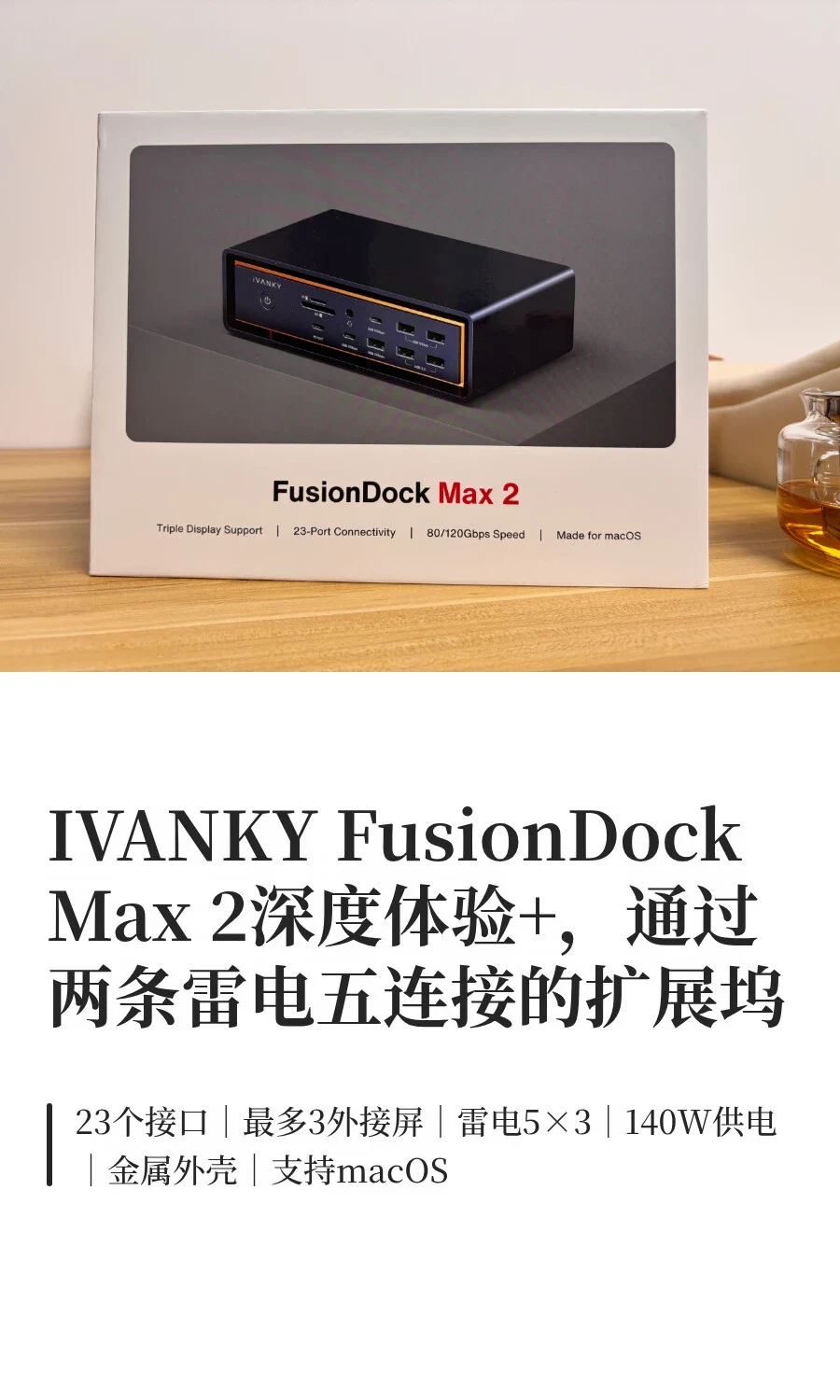

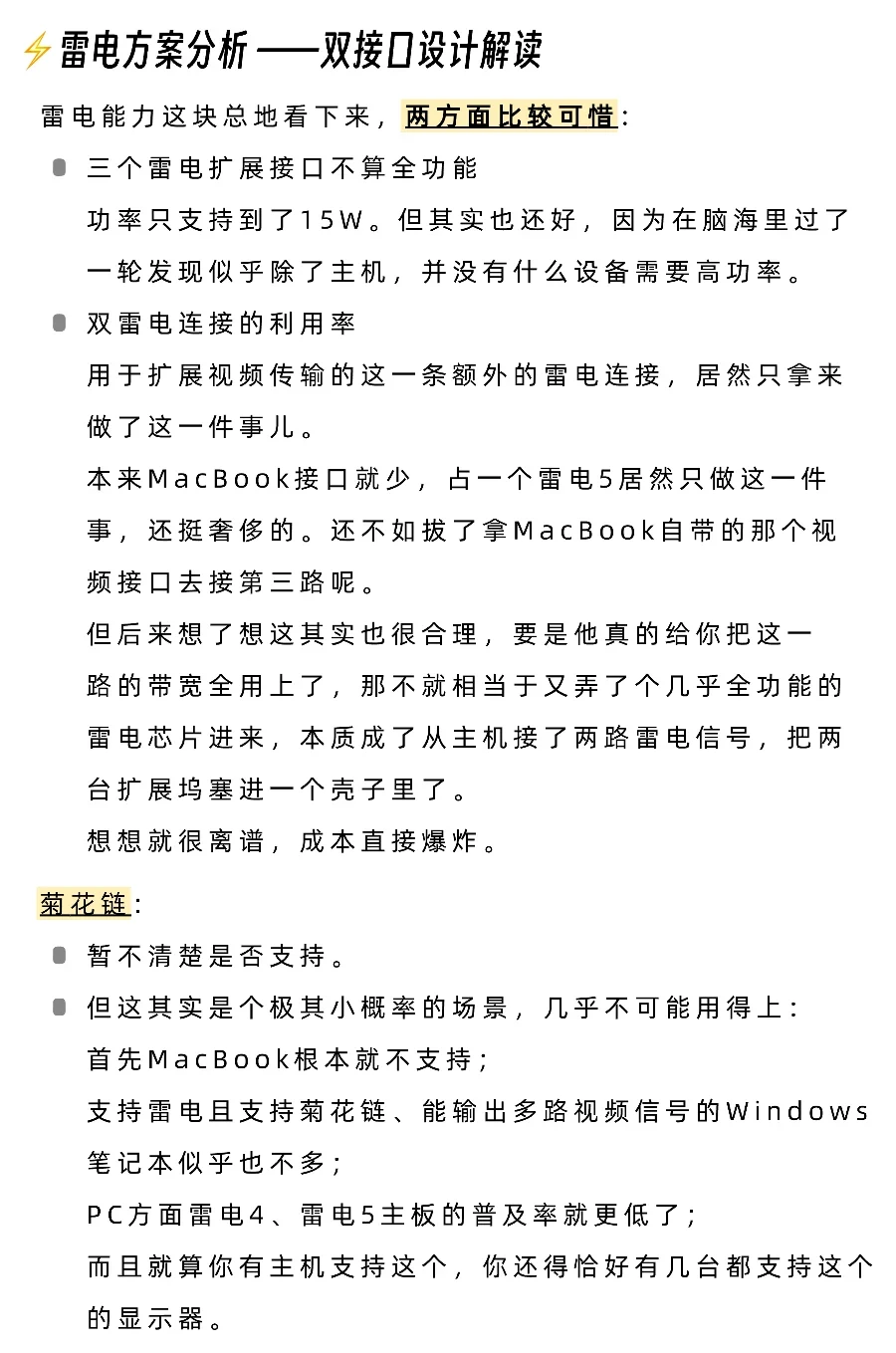
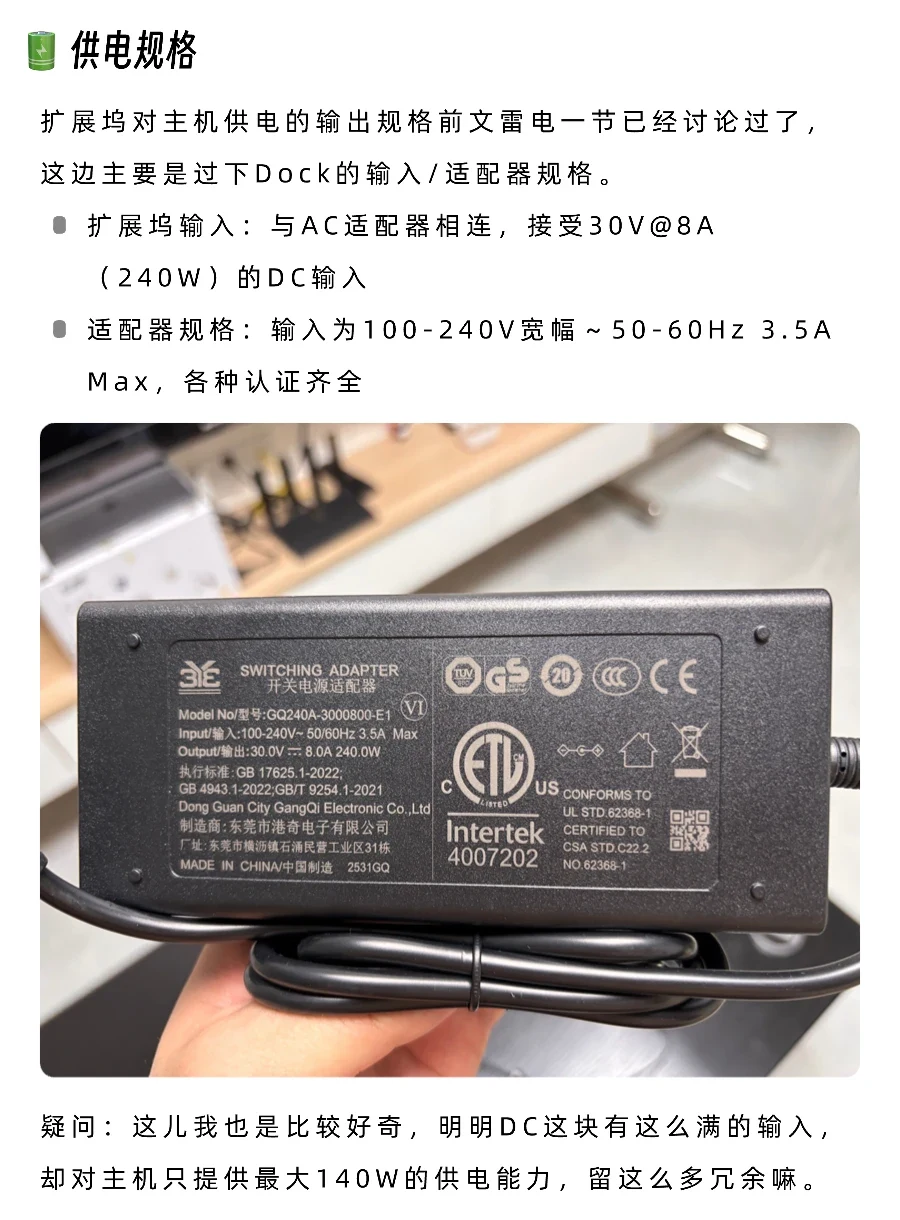

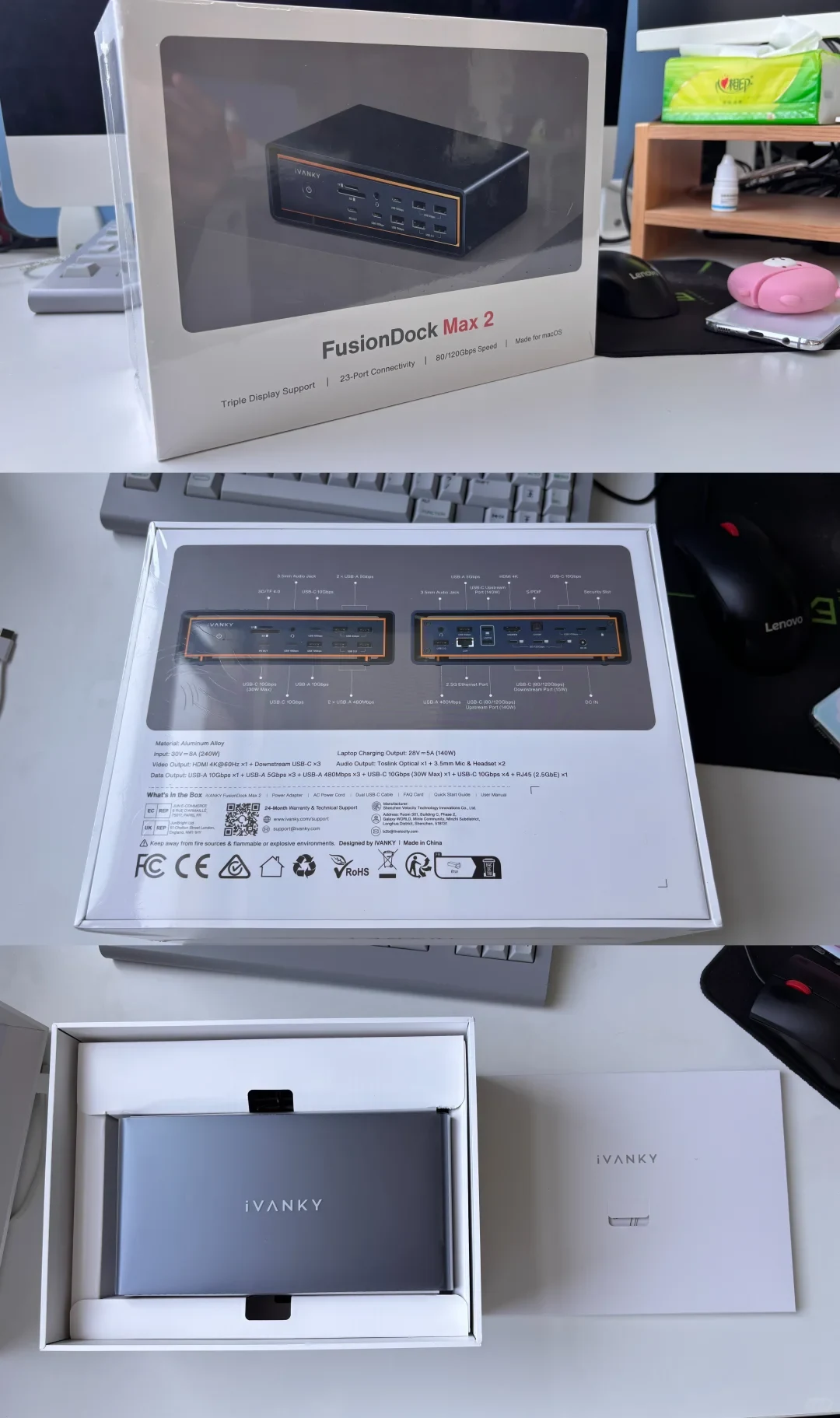
iVANKY FusionDock Max 2: an in-depth experience with a dock connected by two Thunderbolt 5 links. It has 23 ports, supports up to three external displays, provides up to 140 W of power, and has a metal enclosure and macOS support.
Thank you to iVANKY for sending me its new Thunderbolt 5 dock and inviting me to try it. After using it for more than half a month, here are my thoughts.
Quick summary
A nearly perfect dock
• It has an exceptionally complete selection of ports, with different USB standards represented on both the front and rear. There are 23 expansion ports, covering almost everything I can think of; perhaps the only omission is a CFexpress card reader, which only a small number of users need.
• The specifications are high-end: full-speed Thunderbolt 5, up to 140 W of power delivery to the host, support for three displays on a Mac—two at 6K plus one at 4K—and three downstream Thunderbolt ports.
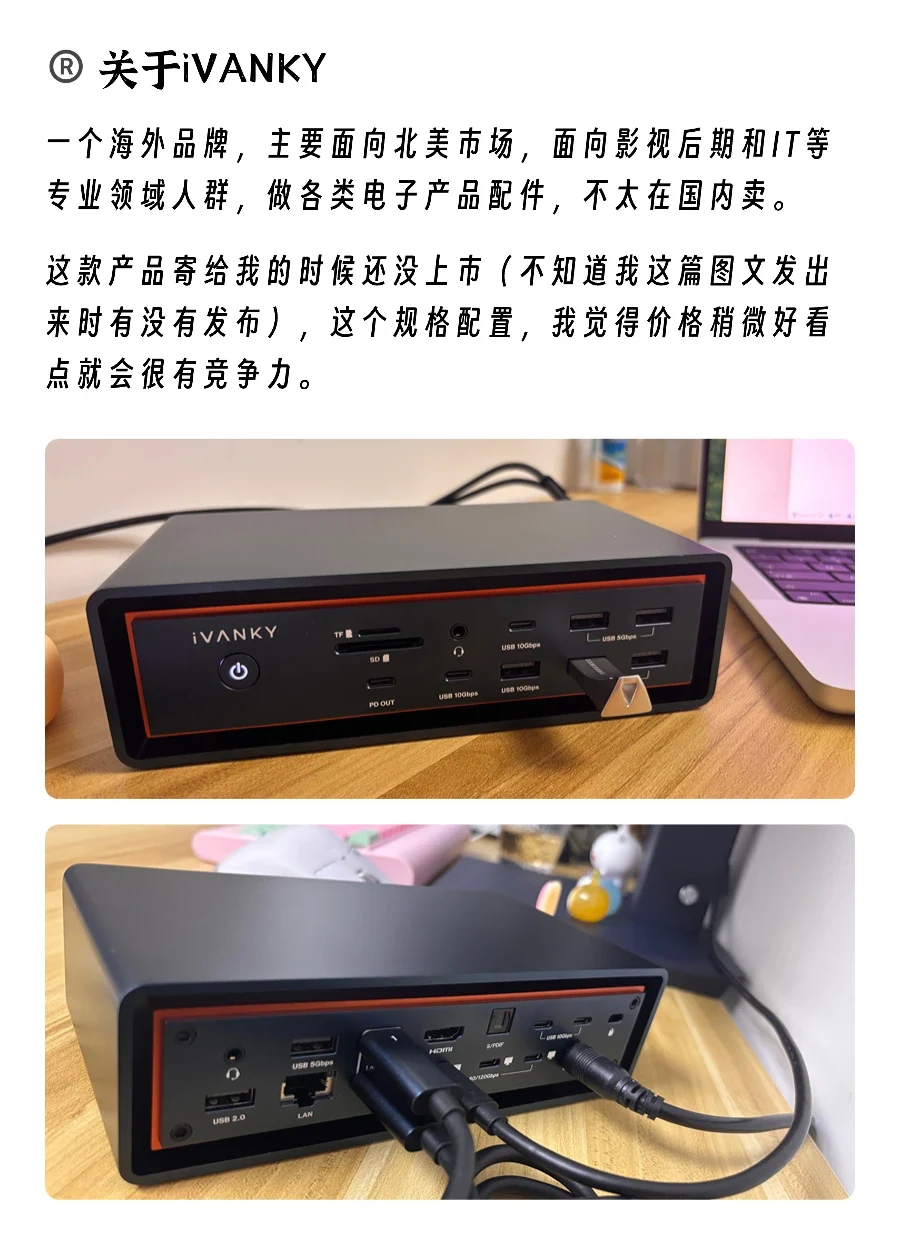
• It looks good: an all-aluminum body, active cooling, a power button and indicator light, and labels engraved below every port to identify its function and specifications.
• It offers strong Apple support and is aimed mainly at Mac users.
Two small disappointments
• The active-cooling fan does not adjust its speed in response to temperature; it runs at full speed all the time. I could clearly hear it, at a level close to the high-speed fan on an M4 MacBook Pro. The company told me the final retail version would use a slower fan to reduce noise.
• I wish the Thunderbolt ports provided more power, both to the host and through the three downstream ports. The maximum is currently 140 W to the host and 15 W through each of the three downstream Thunderbolt ports.
About iVANKY
It is an overseas brand that mainly targets the North American market and people working in professional fields such as film and video post-production and IT. It makes accessories and other electronics and does not sell much in China.
The company sent me this product before it had launched; I don’t know whether it will be available by the time this post goes out. Given the specifications, I think it could be competitive if the price is appealing.
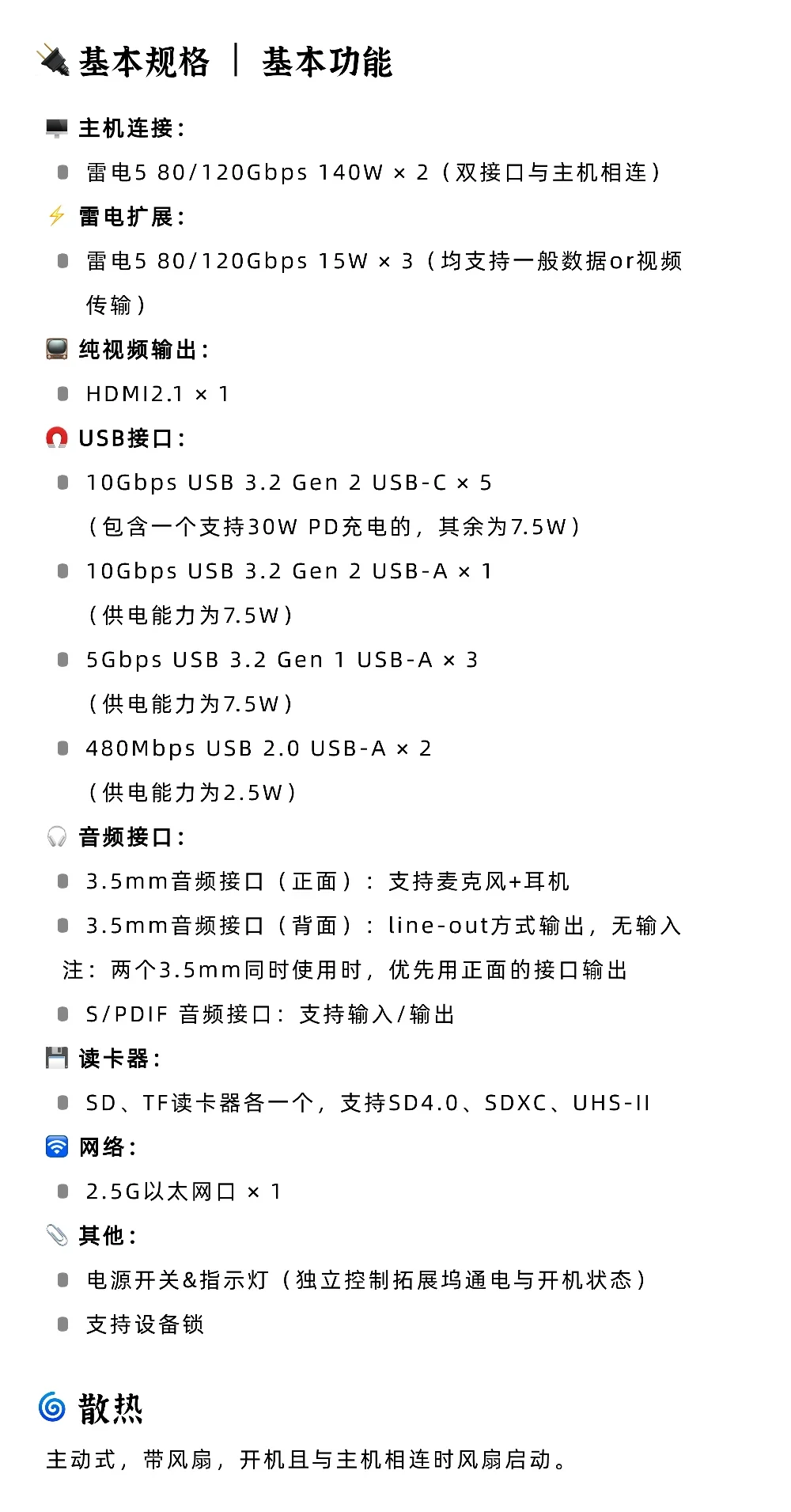
Basic specifications and functions
Host connections
• Two Thunderbolt 5 connections to the host, rated at 80/120 Gbps, with up to 140 W of power delivery.
Downstream Thunderbolt
• Three Thunderbolt 5 ports, rated at 80/120 Gbps and 15 W each; all support data or video transmission.
Video output
• One HDMI 2.1 port.
USB ports
• Five 10 Gbps USB 3.2 Gen 2 USB-C ports. One supports 30 W PD charging; the other four provide 7.5 W.
• One 10 Gbps USB 3.2 Gen 2 USB-A port, providing 7.5 W.
• Three 5 Gbps USB 3.2 Gen 1 USB-A ports, providing 7.5 W each.
• Two 480 Mbps USB 2.0 USB-A ports, providing 2.5 W each.
Audio
• A front 3.5 mm audio jack supports a microphone and headphones.
• A rear 3.5 mm jack outputs line-level audio and does not accept input. If both 3.5 mm jacks are used, the front jack takes priority for output.
• The S/PDIF audio port supports input and output.
Card readers
• One SD and one TF card reader, supporting SD 4.0, SDXC and UHS-II.
Networking
• One 2.5 Gigabit Ethernet port.
Other
• A power button and indicator light independently control the dock’s power and operating state.
• It supports a security lock.
Cooling
• Active fan cooling. The fan starts when the dock is switched on and connected to a host.
Video output
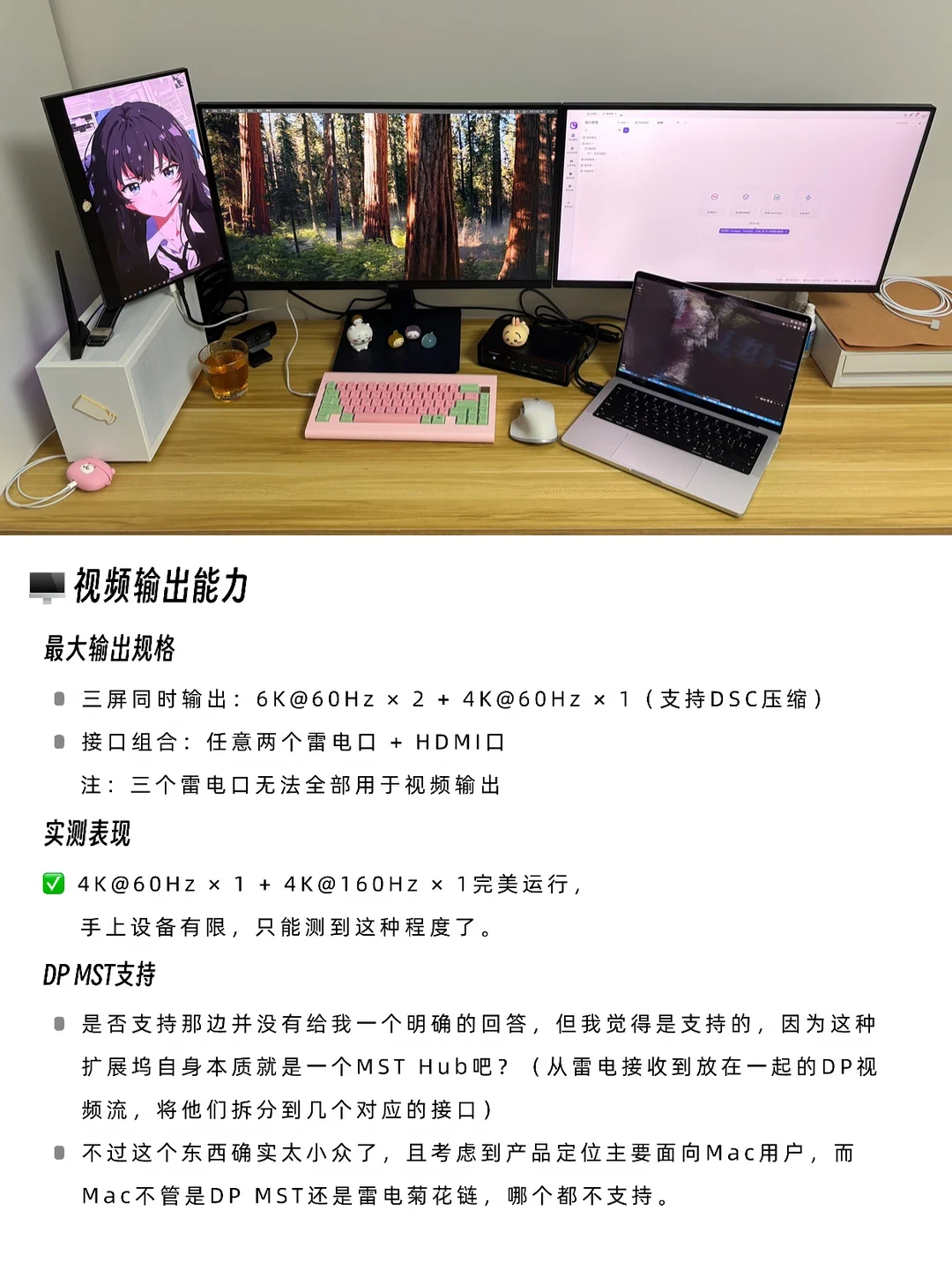
Maximum output specifications
• Three displays at once: two at 6K 60 Hz and one at 4K 60 Hz, using DSC compression.
• The combination is any two Thunderbolt ports plus the HDMI port. The three downstream Thunderbolt ports cannot all be used for video output at the same time.
My test
• One 4K 60 Hz display and one 4K 160 Hz display worked perfectly. I only had enough equipment to test this combination.
DisplayPort MST support
• I did not receive a clear answer on whether it supports MST. I think it might, because this kind of dock is essentially an MST hub, taking the DisplayPort video streams received over Thunderbolt and splitting them across the corresponding ports.
• But MST is a very niche feature. The dock is mainly aimed at Mac users, and Macs support neither DisplayPort MST nor Thunderbolt daisy-chaining.
More details and discussion about video output, including how I think the specifications are achieved
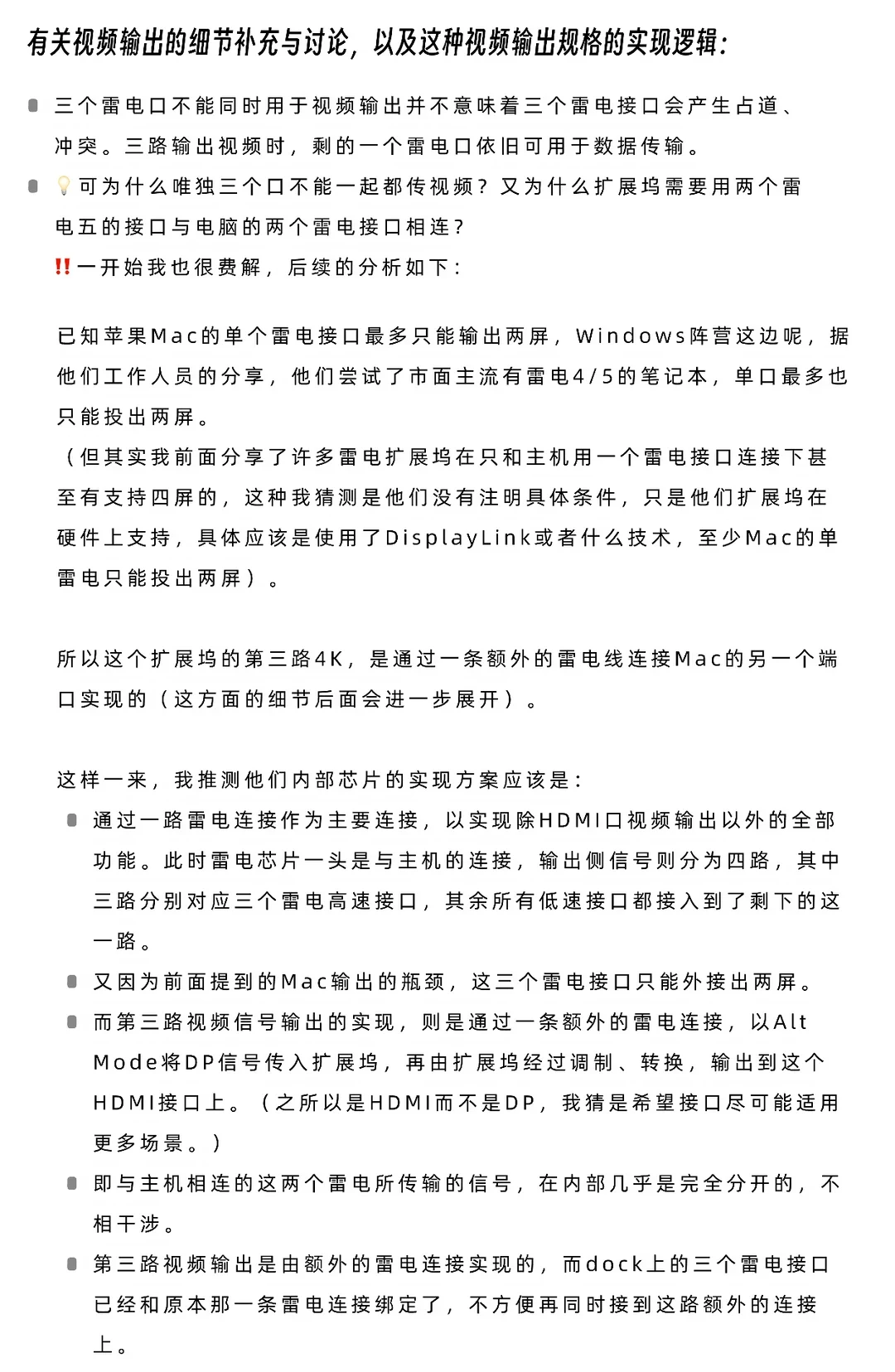
• The fact that all three downstream Thunderbolt ports cannot output video at once does not mean the ports block or conflict with one another. When three displays are connected, the remaining Thunderbolt port can still transfer data.
Why can’t all three ports carry video at once? And why does the dock need two Thunderbolt 5 connections to two ports on the computer?
I was puzzled at first. Here is my subsequent analysis.
I understand that a single Thunderbolt port on a Mac can output to at most two displays. According to information shared by the company’s staff, they also tried mainstream laptops with Thunderbolt 4 or 5 and found that a single port could output to at most two displays.
I have previously seen many Thunderbolt docks advertised as supporting as many as four displays through a single host connection. My guess is that they may not specify the conditions and that the dock may support this in hardware through DisplayLink or a similar technology. At least on a Mac, a single Thunderbolt port can output to only two displays.
So I think the third 4K display on this dock uses an additional Thunderbolt cable connected to a second port on the Mac. I discuss more details below.
My theory is that the internal chips work roughly as follows
• One Thunderbolt connection acts as the main connection and provides all functions other than video output through HDMI. At the dock’s Thunderbolt chip, the host connection is split into four output paths: three for the downstream high-speed Thunderbolt ports, and one for all the remaining lower-speed ports.
• Because of the Mac output limit I mentioned above, those three Thunderbolt ports can connect to only two displays.
• The third display uses the additional Thunderbolt connection. The DisplayPort signal enters through Alt Mode; the dock then modulates and converts it for output through HDMI. I suspect they chose HDMI rather than DisplayPort to make the port suitable for more situations.
• In other words, I think the two Thunderbolt signals from the host are almost completely separate inside the dock and do not interfere with one another.
The additional Thunderbolt connection provides the third video output. The dock’s three downstream Thunderbolt ports are already tied to the original host connection, so they cannot conveniently also connect to the additional video connection.
Thunderbolt design analysis — understanding the dual-connection design
I have discussed some of this under video output; here is more.
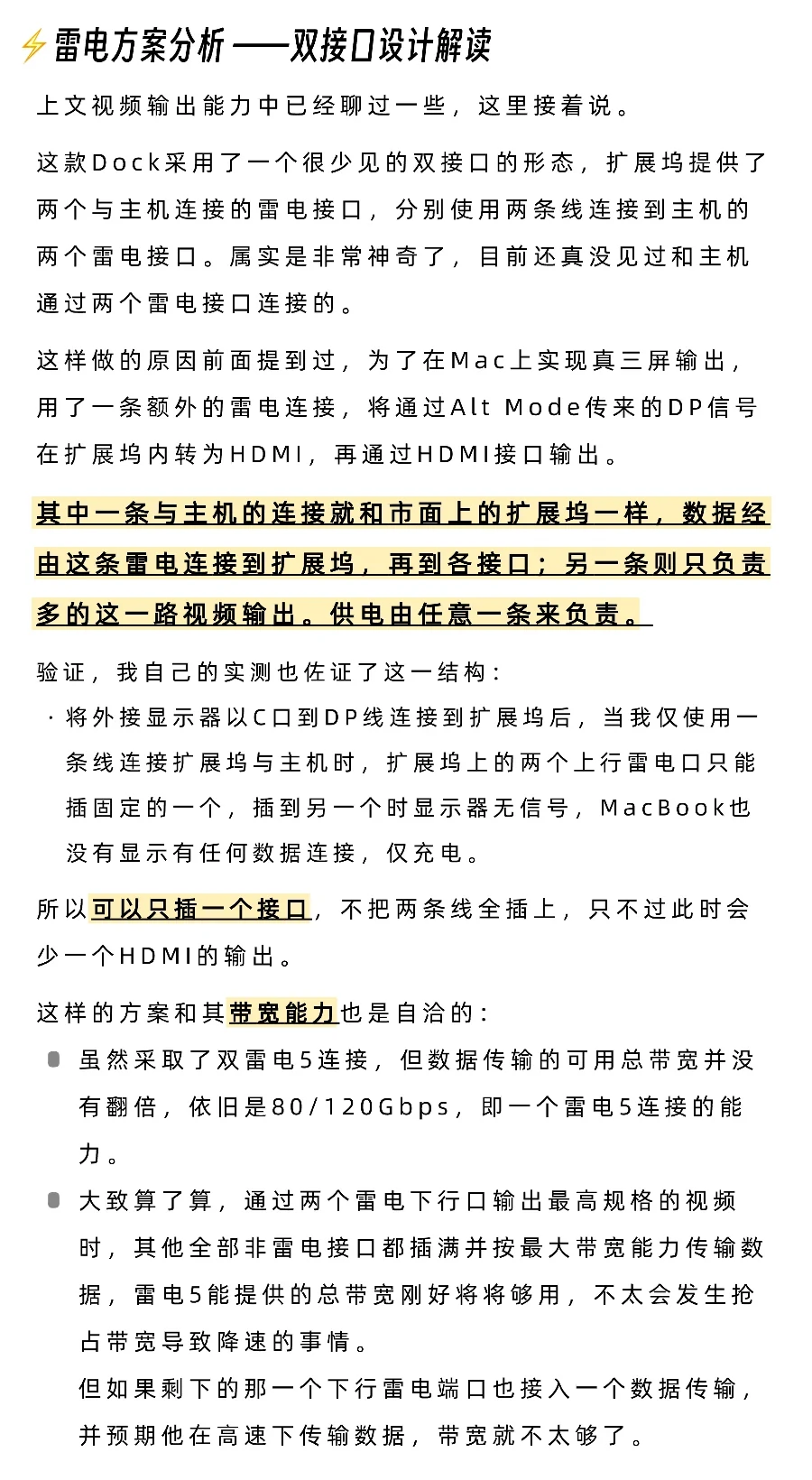
This dock uses an unusual design: it has two Thunderbolt ports for connecting to the host, and uses two cables to connect to two Thunderbolt ports on the computer. I have not come across another dock that connects to the host this way.
As mentioned earlier, the reason is to enable three displays on a Mac. An extra Thunderbolt connection carries a DisplayPort signal through Alt Mode; the dock converts it to HDMI and outputs it through the HDMI port.
One host connection works like the connection on other docks: data travels through it to the dock and then to its ports. The other only handles the additional display signal. Either connection can provide power.
My test supported this explanation
• I connected an external monitor to the dock with a USB-C-to-DisplayPort cable and connected the dock to the host with just one cable. Only one of the dock’s two upstream Thunderbolt ports worked: if I used the other one, the monitor showed no signal, and the MacBook showed no data connection—only charging.
So you can connect only one cable and leave the other unplugged, but you will lose one HDMI output.
The arrangement also makes sense in terms of bandwidth
• Although the dock connects over two Thunderbolt 5 links, the available data bandwidth does not double. It remains 80/120 Gbps, the capacity of one Thunderbolt 5 link.
My rough calculation suggests that when the two downstream Thunderbolt ports are outputting video at their highest specifications and every other non-Thunderbolt port is connected and transferring data at its maximum bandwidth, the Thunderbolt 5 connection has just enough total bandwidth. There is not much risk of competition slowing things down.
But if the remaining downstream Thunderbolt port is also connected to a device expected to transfer data at high speed, there would not be enough bandwidth.
Thunderbolt design analysis — understanding the dual-connection design
The power-delivery arrangement fits the dual-connection design
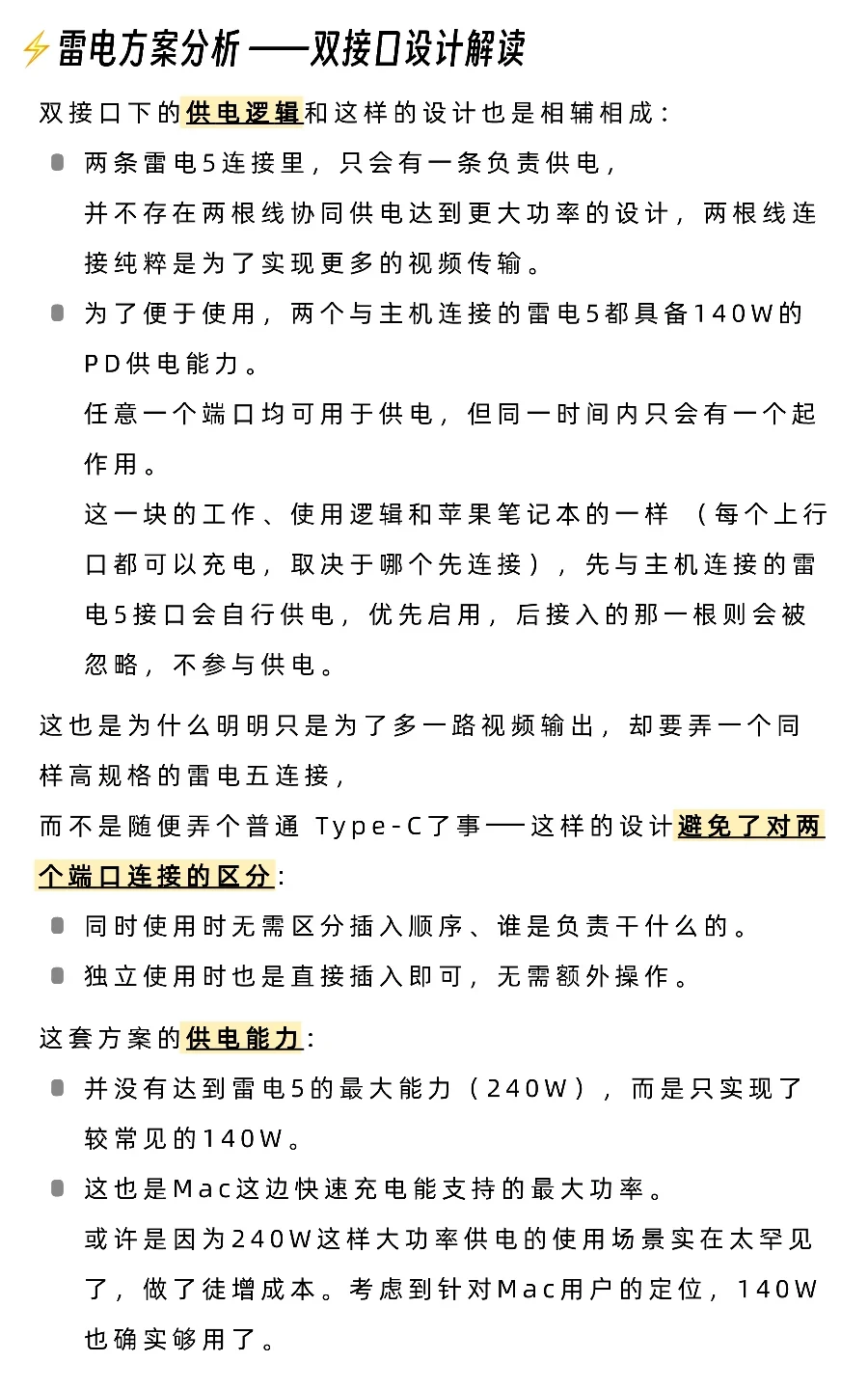
• Only one of the two Thunderbolt 5 connections supplies power at a time. The two cables do not work together to provide more power; the second connection is purely for additional video output.
• For convenience, both Thunderbolt 5 host ports can deliver up to 140 W of PD power.
Either port can provide power, but only one works at a time. The setup works like charging an Apple laptop: whichever port is connected to the host first supplies power, while the second cable is ignored for charging.
That is why the dock uses another full-specification Thunderbolt 5 connection for just one additional video output instead of a basic USB-C connection. It avoids having to distinguish between the two host ports:
• When both are connected, you do not need to remember which cable goes where or what each one does.
• When using only one, you can plug it in directly without any additional steps.
The power-delivery setup does not reach Thunderbolt 5’s maximum 240 W; it provides the more common 140 W. That is also the maximum power supported for fast charging on the Mac side. Perhaps 240 W is too rarely needed to justify the added cost. Given that this dock is aimed at Mac users, 140 W should be enough.
Thunderbolt capabilities: two points of disappointment
Overall, there are two aspects of the Thunderbolt setup I find disappointing
• The three downstream Thunderbolt ports are not fully featured. Each provides only 15 W. Still, after thinking it over, I could not come up with many devices other than a host computer that need more power.
• The second Thunderbolt connection is not used very efficiently. The extra connection for video is used for that one purpose alone. MacBooks already have few ports, so using up a Thunderbolt 5 port just for this feels extravagant. I might as well unplug it and use the MacBook’s own video output to connect the third display.
On reflection, this is reasonable. If the dock used the full bandwidth of that connection, it would need another almost fully featured Thunderbolt chip—in effect, it would be like connecting two docks to the host and putting them in one enclosure. The cost would be enormous.
Daisy-chaining
• I don’t know whether it supports it. But this is an extremely uncommon situation and hardly anyone is likely to need it. First, MacBooks do not support it at all. Few Windows laptops have Thunderbolt and support daisy-chaining and multiple video outputs; Thunderbolt 4 and 5 motherboards are even less common. And even if you have a compatible computer, you would also need several compatible displays.
Power specifications
I discussed the dock’s power output to the host in the Thunderbolt section. Here I will cover the dock’s input and power adapter.
• Dock input: DC input from the AC adapter, 30 V at 8 A (240 W).
• Adapter specifications: 100–240 V AC input, 50–60 Hz, 3.5 A maximum, with various certifications.
I was curious why the dock provides a maximum of 140 W to the host when its DC input can supply 240 W. Is so much capacity being left unused?
Appearance
Starting with the dock itself: for this product category, I think it looks good. The company’s product and brand marketing mainly targets people working in film and video, and this design suits that professional style.
• The weighty enclosure is made of anodized aluminum and is designed to sit horizontally, with ports on the front and rear.
• A rounded outer shell, with a gap around it, surrounds a square main body. The front and rear port panels are a little smaller and stepped relative to the main body, revealing a glossy orange metal edge around it.
• The front power button also acts as an indicator light and feels good to press. I think it looks great.
But compared with metal desk accessories such as custom keyboards, I think it falls a little short
• The main body and outer shell are connected by a strip at the bottom. To my fussy eye, the fit looks slightly off, as if there is a small tolerance issue.
• The body is metal, but it looks as though it may be made from extruded aluminum. A fully CNC-machined body would be fantastic; it still lacks that Apple-like finish.
• I think the shape could be improved. A triangular prism resting on its side, with the front and rear ports on the two sloping sides, might look more distinctive and make the rear ports easier to plug into. But that is a matter of taste.
Packaging and accessories
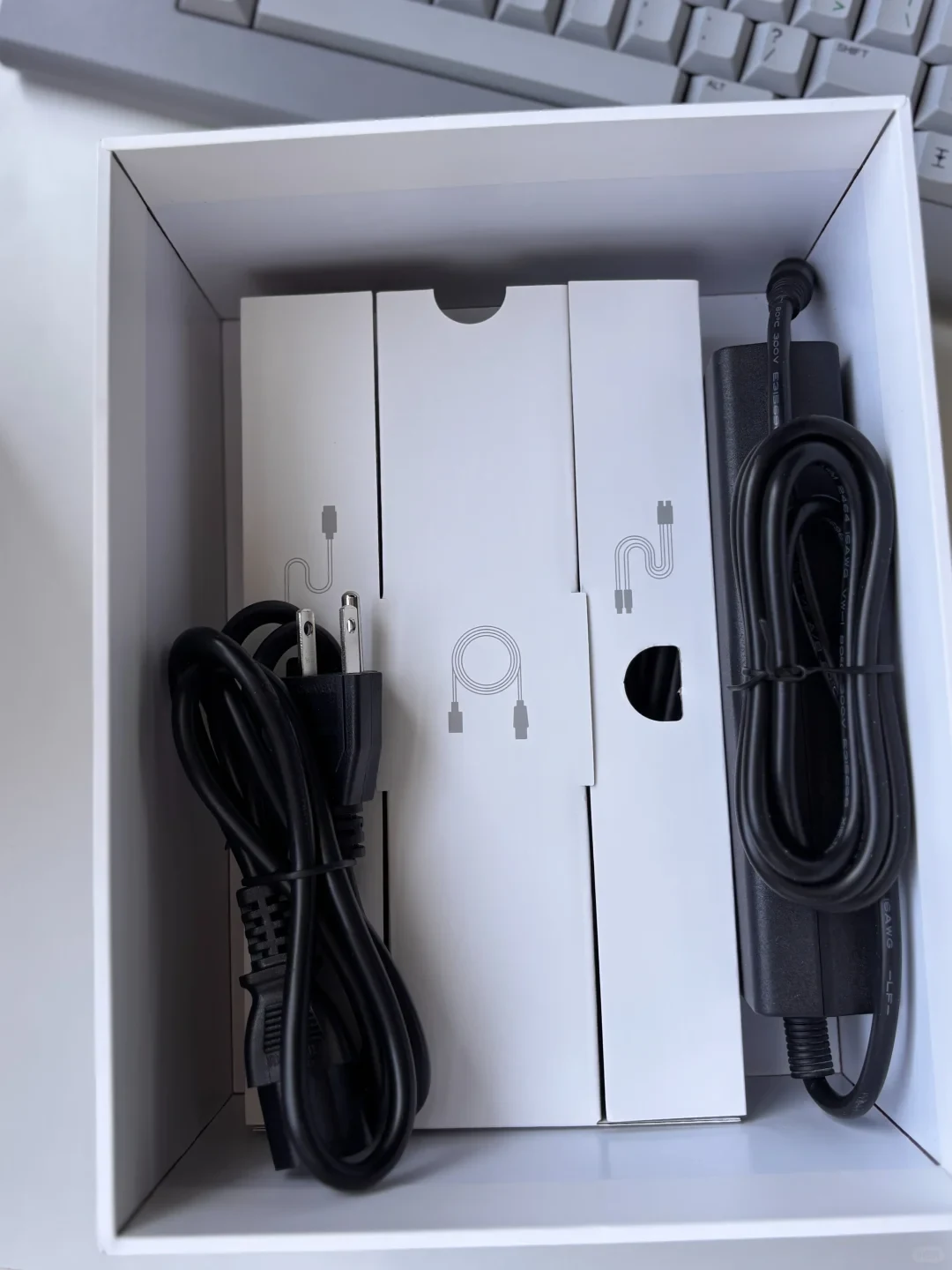
The packaging is quite good—simple and attractive—and displays the product’s main features on the outside. See the photos on the next page.
Appearance
Packaging and accessories
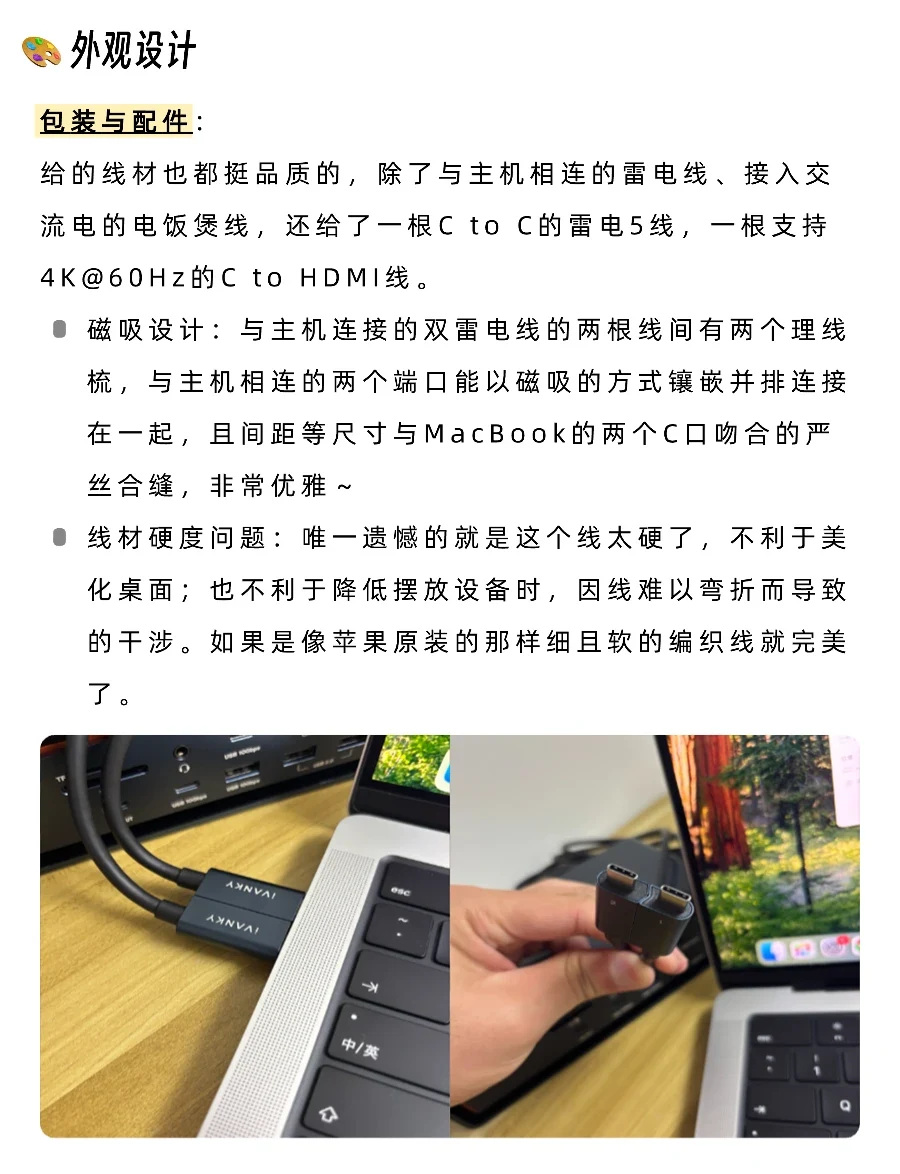
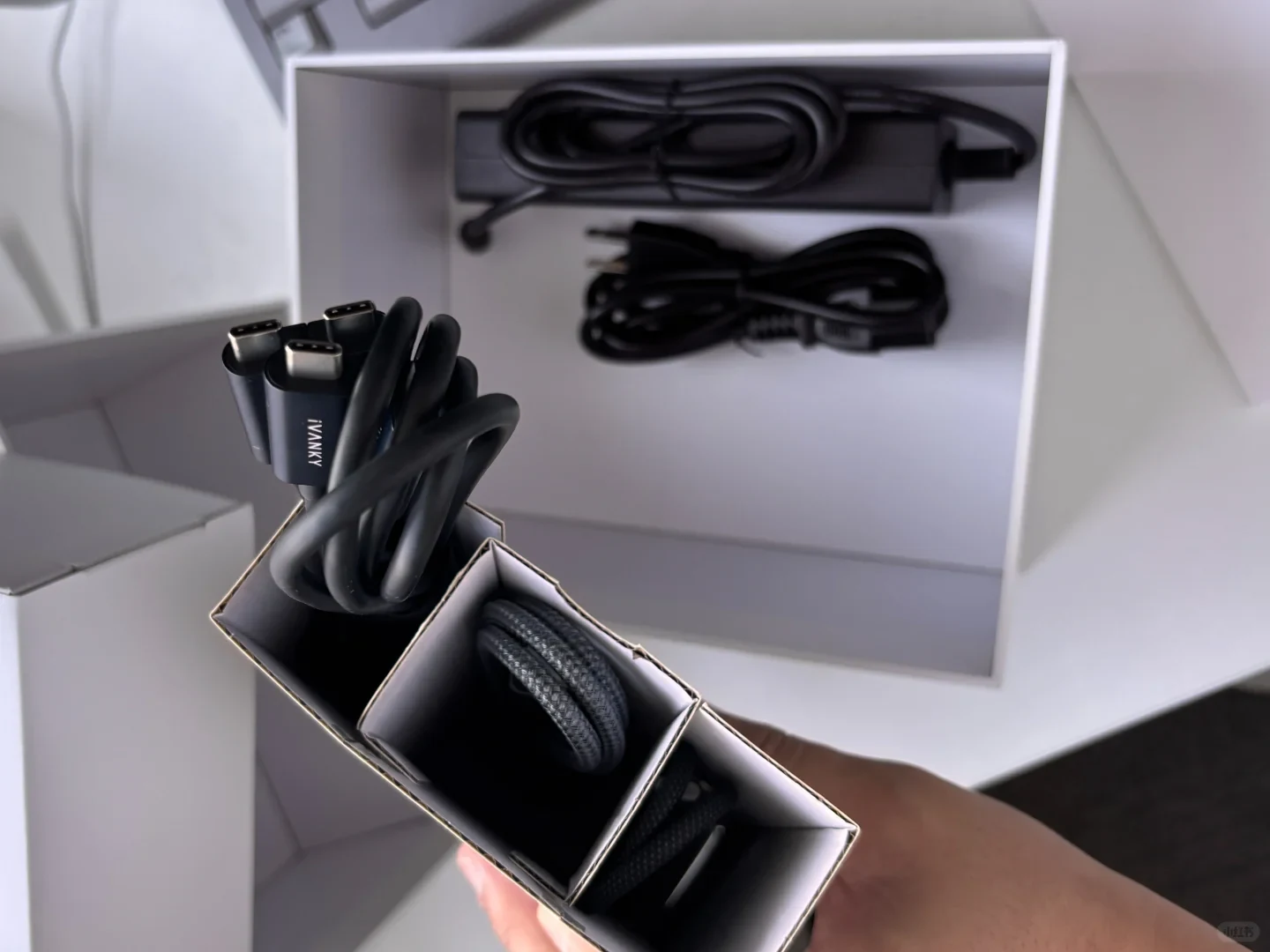
The included cables also feel high quality. Besides the Thunderbolt cables for connecting to the host and the power cable for the AC adapter, the box includes a Thunderbolt 5 USB-C-to-USB-C cable and a USB-C-to-HDMI cable that supports 4K at 60 Hz.
• Magnetic design: The two Thunderbolt cables for connecting to the host are held together by two cable combs. Their connectors attach magnetically side by side, with spacing and dimensions that match the two USB-C ports on a MacBook precisely. It looks very elegant.
• Cable stiffness: My one disappointment is that the cables are too stiff. They are hard to arrange neatly on a desk and can get in the way of other equipment because they do not bend easily. Thin, soft braided cables like Apple’s original cables would be perfect.
Appearance
Manuals
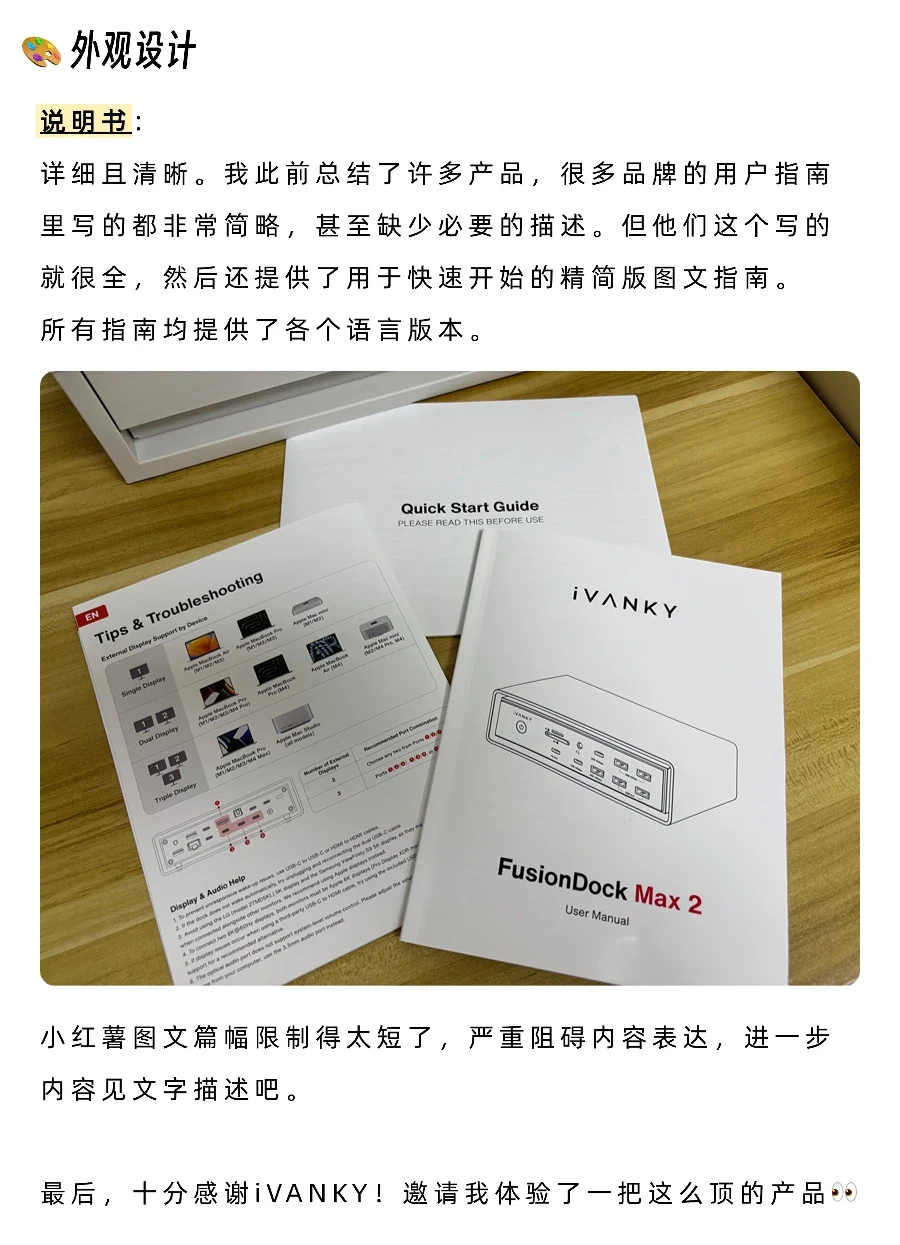
The instructions are detailed and clear. I have reviewed many products whose user guides were very brief or even omitted necessary information. These guides cover things thoroughly and also include a concise illustrated quick-start guide. All guides are available in multiple languages.
Xiaohongshu limits the length of image-and-text posts, which makes it very hard to explain everything. See the written description for more details.
Finally, many thanks to iVANKY for inviting me to try such a great product!
A few more points
An aside 1 — Intel certification
I noticed that this product did not appear in Intel’s list of certified Thunderbolt devices. A member of the company’s R&D team explained:
Intel takes a cautious approach. Products that pass its certification are generally based on standard-module designs: essentially, versions of its official templates with minor adjustments. These mostly include cables and basic docks.
For Thunderbolt docks with extensive expansion capabilities and many ports, the internal design is much more complex. Intel rarely certifies them because they are too much trouble.
That would fit with what I saw in Intel’s certified-products list: the certified iVANKY products were all basic models and cables.
This means that a certified product is definitely reliable, but a lack of certification does not mean anything; many products are not certified because their designs are too complex to provide richer features.
An aside 2 — Firmware updates
During my experience with the dock and conversations with the company, I found that some small features could be added or improved through firmware updates.
That made me realize how fascinating Thunderbolt docks are. Compared with a traditional USB hub, this device is more like a modern router: its central Thunderbolt-protocol chip and other processors provide versatile capabilities in hardware, and firmware updates can improve performance and add small features over time.
Source: 乌噜乌啦 · Xiaohongshu · 2025-09-07 · IVANKY FusionDock Max 2深度体验+. Search this Chinese title in Xiaohongshu to find the original post.
Before You Buy
Models in your region
iVANKY’s current US, UK and EU listing identifies the FusionDock Max 2 as the same model used in the author’s pre-release review. However, the current listing differs from the author’s sample-era specifications on some points, so check the regional listing for the exact port configuration before buying.
| Model in this review | Related regional model | What to know |
|---|---|---|
| iVANKY FusionDock Max 2 | iVANKY FusionDock Max 2 (United States / United Kingdom / European Union) | The US, UK and EU listing identifies the same model, but its current specifications differ from the review’s sample-era list: it specifies HDMI 2.0 and three USB 2.0 ports, while the author listed HDMI 2.1 and two USB 2.0 ports. Confirm the port details for the market and unit you plan to buy. |
- Model in this review
- iVANKY FusionDock Max 2
- Related regional model
- iVANKY FusionDock Max 2 (United States / United Kingdom / European Union)
- What to know
- The US, UK and EU listing identifies the same model, but its current specifications differ from the review’s sample-era list: it specifies HDMI 2.0 and three USB 2.0 ports, while the author listed HDMI 2.1 and two USB 2.0 ports. Confirm the port details for the market and unit you plan to buy.
The display test is useful, but narrower than the headline maximum
The author tested one 4K 60 Hz display alongside one 4K 160 Hz display and reported that both worked. That test does not establish performance with the advertised maximum of two 6K 60 Hz displays plus one 4K 60 Hz display; the author said their equipment limited what they could test. The current manufacturer listing describes the dock as using Thunderbolt and DisplayPort Alt Mode, but the tested result should not be extended to other host computers or display combinations without checking compatibility. The current listing supports Apple Silicon Macs and excludes Windows, Intel Macs and Chromebooks. It specifies a Thunderbolt 5 link plus a DisplayPort Alt Mode link; two host leads do not double data bandwidth. Its current chip-specific display table also includes newer M5 configurations, so the sample-era restriction on three downstream video outputs is not universal. The author’s bandwidth arithmetic is a theory, not a simultaneous-throughput test.
The author’s claim that Macs do not support Thunderbolt daisy-chaining is too broad. Apple says additional displays can be connected through downstream Thunderbolt display ports where supported; the host Mac model, resolution and refresh rate determine the display limit. Apple’s guidance does not establish that this dock supports every daisy-chain arrangement, so buyers should check both the host’s display limits and the dock’s supported configuration.
Check the current regional listing for port details
The current US, UK and EU product listing identifies the FusionDock Max 2 and advertises 23 ports, up to 140 W of host power delivery, a 240 W power supply and active cooling. Its port details differ from the author’s pre-release sample list: the current listing specifies HDMI 2.0 and three USB 2.0 ports, while the author recorded HDMI 2.1 and two USB 2.0 ports. This matters if you are choosing the dock for a particular HDMI mode or counting available USB 2.0 connections; confirm the specification for the exact regional listing.
The author heard the pre-release sample’s fan running loudly at a constant speed and relayed a promised slower fan for retail units. The post does not record a test of that change. The manufacturer now publishes a fan-noise claim, but that does not independently verify the author’s sample or establish how the retail fan compares in the same conditions.
Treat certification and compatibility as separate checks
The author reported that the dock did not appear in the Intel certified-device list they checked at the time and relayed a company developer’s explanation for that absence. That explanation is not verified Intel policy, and the historical search does not establish the dock’s current certification status. Intel says certification involves required performance and interoperability testing; certification is relevant evidence, but it does not guarantee every individual unit or setup. Check current certification information and the dock maker’s compatibility guidance rather than treating either certification or its absence as a complete verdict.
Intel Thunderbolt certification requirements · United States
Related Reading

Reviews & Guides · Computing & Networking
TP-Link Deco X55 in a two-storey Australian home: Wi-Fi across 300 m²
I installed two TP-Link Deco X55 units in my 300 m², two-storey home; bedrooms that often lost Wi-Fi now had a signal throughout the house.

Reviews & Guides · Computing & Networking
TP-Link Deco X55: DNS pauses stopped for six days in access-point mode
I switched my Deco X55 to access-point mode and restored my older router to the front of the network. The DNS-like pauses stayed away for six days.
Reviews & Guides · Computing & Networking
TP-Link Deco X55 after nearly a year: six units, Teams and gaming
I’ve used six TP-Link Deco X55 units for nearly a year, including daily Teams calls and online gaming; I’ve had only one or two connectivity issues.